Are you a busy adult gamer looking to unwind, connect with friends, or simply explore a universe of endless possibilities? You're not alone. In 2026, gaming remains a top leisure activity for US adults, with many seeking versatile platforms that offer both creativity and community. This guide will walk you through exactly how to add Roblox to your PC, mobile, or console, ensuring you can jump into the action quickly and effortlessly. Roblox isn't just for kids anymore; it's a thriving ecosystem embraced by millions of players of all ages, offering everything from immersive role-playing to competitive challenges and social hangouts. We'll cover everything from initial download to setting up your account, finding friends, and even optimizing your experience. Get ready to tap into one of the most dynamic gaming platforms available today, tailored for your convenience and enjoyment. Discover the trending games, connect with a vast global community, and unleash your inner creator, all within the world of Roblox.
How do I know if Roblox is installed correctly on my PC?
After running the installer and attempting to launch a game from the Roblox website, the game should open directly without prompting another download. You'll also find the 'Roblox Player' icon in your Start Menu or Applications folder, confirming a successful installation. If a game launches smoothly, you're all set.
Can I link my mobile Roblox account to my PC account?
Yes, your Roblox account is universal across all supported devices. As long as you log in with the same username and password on your PC, mobile, or Xbox, you'll access your single account, including all your Robux, friends, and in-game progress. It's designed for seamless cross-device play.
What if I forgot my Roblox password or username?
Don't panic! On the Roblox login page, look for 'Forgot Password or Username?' Click this link and follow the prompts. You'll typically need access to the email address or phone number associated with your account to reset your password or recover your username. Keep your account recovery info up-to-date.
Are there any hidden costs after I add Roblox?
No, the core Roblox experience is free to download and play. Any costs come from optional in-game purchases using Robux, which you buy with real money. You can enjoy thousands of games without ever spending, but cosmetic items or special abilities often require Robux. Set a budget to manage these if you choose to participate.
How can I ensure a smooth gameplay experience on older devices?
For older devices, try lowering in-game graphics settings, closing all other background applications, and ensuring your internet connection is stable. Keeping your device's operating system and graphics drivers updated can also significantly improve performance. Prioritize a stable connection over high graphics for consistent play.
Is it possible to play Roblox on a Chromebook?
Many modern Chromebooks support Android apps via the Google Play Store. If your Chromebook has Play Store access, you can download the Roblox mobile app just like you would on an Android phone or tablet. This allows you to play a wide range of Roblox experiences directly on your Chromebook, expanding your gaming options.
What are 'experiences' in Roblox?
Roblox officially refers to its user-created games as 'experiences' to reflect the broad range of interactive content available beyond traditional games. These can include social hangouts, virtual concerts, educational simulations, or even entire virtual worlds. It highlights the platform's focus on user-generated content and diverse forms of digital interaction.
Hey fellow gamer! Ever feel like you’re missing out on a massive chunk of the gaming universe? You know, that place where creativity reigns supreme, social connections are key, and there’s always something new to explore? If you’re a busy adult balancing work, life, and your passion for gaming, you might have heard whispers of Roblox but wondered if it’s truly for you, or perhaps, how to even get started. Well, you're in the right place! Just this month, a report showed that over 87% of US adults who game spend an average of 10+ hours a week unwinding with their favorite titles, and a huge chunk of that is happening on versatile, cross-platform experiences like Roblox. It's not just a platform; it’s a lifestyle for millions. Let's cut through the noise and show you exactly how to add Roblox to your life, making sure you don't miss a beat.
How to Add Roblox to Your PC?
Adding Roblox to your PC is straightforward, making it one of the most accessible gaming platforms out there. Forget complicated installations; Roblox streamlines the process so you can jump into the fun quickly.
Step-by-Step PC Installation:
- Open Your Web Browser: Navigate to the official Roblox website. You can simply type "Roblox.com" into your address bar.
- Create an Account or Log In: If you're new, you'll need to sign up. Provide your birth date, create a username (avoid real names for safety), and set a strong password. If you already have an account, just log in.
- Find a Game: Once logged in, browse the vast library of experiences. Pick any game that catches your eye. Don't worry, you can always switch later!
- Launch the Game: Click on the green "Play" button that appears on the game's page. This is the magic step.
- Download and Install the Player: The first time you do this, a pop-up will appear, prompting you to download the Roblox Player. Click "Download and Install Roblox."
- Run the Installer: A small file (RobloxPlayerLauncher.exe) will download. Locate it (usually in your Downloads folder) and double-click to run it.
- Follow On-Screen Prompts: The installer will automatically set up Roblox on your computer. This process is usually quick, taking just a few minutes depending on your internet speed.
- Launch and Play: Once installed, Roblox Player will automatically launch the game you selected. Future games will launch directly without needing to reinstall.
Why This Matters: Many adult gamers appreciate simplicity. With mobile gaming dominating recent trends, cross-platform ease of access is crucial. This seamless PC integration ensures you can transition from work to play with minimal fuss, a key factor for the 20-45 age demographic balancing gaming with life.
Why Should I Add Roblox to My Devices?
Beyond the simple installation, why dedicate precious device space to Roblox? It's about more than just games; it's about community, creativity, and connection, elements crucial for today's social gamers.
Unleash Creativity and Exploration: Roblox offers an unparalleled sandbox experience. You're not just playing games; you're exploring entire worlds built by other users, and even creating your own. This month's trends show a significant rise in 'cozy gaming' and 'creator content,' both pillars of the Roblox experience. From intricate role-playing towns to challenging obstacle courses, the variety is endless.
Connect and Socialize: For many US gamers, gaming is a social activity. Roblox provides robust tools to find friends, join groups, and chat in-game. It’s like a virtual hangout spot, perfectly complementing platforms like Discord where many Gen Z and Millennial gamers connect. This social aspect is a massive draw, offering a low-pressure environment to unwind with friends after a long day.
Accessible & Free-to-Play: The core Roblox experience is free. You can download the player and dive into countless games without spending a dime. While in-game purchases (Robux) exist, they are optional and don't gate basic access. This budget-friendly approach is highly valued by adults managing household budgets, allowing for stress relief without financial strain.
Cross-Platform Convenience: As we'll detail, Roblox is available across PC, mobile, and console. This means you can pick up where you left off, whether you’re on your lunch break with your phone or relaxing on the couch with your Xbox. This flexibility is a game-changer for busy schedules.
Where Can I Add Roblox and On What Devices?
Roblox truly shines in its multi-platform availability, catering to the modern gamer's desire for flexibility. This month's data highlights mobile gaming's continued dominance, making Roblox's widespread access incredibly relevant.
- PC (Windows/Mac): The classic way to play, offering a robust experience.
- Mobile Devices (iOS/Android): Play on the go, perfect for commutes or quick breaks.
- Xbox Consoles (Xbox One, Xbox Series X/S): Experience Roblox from your living room.
- Chromebooks: Often compatible through the Google Play Store for Android apps.
Important Note: While Roblox is broadly available, PlayStation and Nintendo Switch platforms do not natively support Roblox as of 2026. This isn't a limitation of the player but rather platform-specific decisions.
Who Can Play Roblox? Is it Only for Kids?
Absolutely not! While Roblox has a strong appeal to younger audiences, its community is incredibly diverse. The notion that it's 'just for kids' is quickly becoming outdated.
A Growing Adult Community: This month, analytics show a significant increase in the 17+ demographic on Roblox, driven by sophisticated experiences and the platform's social features. Many adults use Roblox as a creative outlet, a social hub, or simply to enjoy the vast array of games that span all genres.
Creator Economy: A substantial number of creators on Roblox are adults, building complex games and experiences that appeal to a mature audience. This creator influence is a major trend, allowing individuals to monetize their skills and build virtual businesses.
Parental Controls: For those with younger family members, Roblox offers comprehensive parental controls and privacy settings, allowing you to tailor the experience to suit different age groups within your household. This empowers parents to ensure a safe environment while still enjoying the platform themselves.
When is the Best Time to Dive into Roblox?
There's no better time than now! Roblox is constantly evolving, with new games, features, and events emerging regularly. The platform is currently riding a wave of popularity, especially with the rise of virtual events and persistent online worlds.
Current Trends: This month, look for live concerts, brand activations, and educational experiences gaining traction. Social role-playing games and simulator titles remain perennially popular, offering diverse ways to engage.
Seasonal Events: Roblox often hosts seasonal events, holiday celebrations, and collaborations with major brands or celebrities. These are great times to jump in and experience unique, limited-time content.
How to Add Roblox to My Mobile Device?
Mobile gaming is huge, and Roblox makes it super easy to join from your smartphone or tablet. For US gamers aged 20-45, mobile convenience is often paramount.
For iOS (iPhone/iPad):
- Open the App Store: Tap the blue App Store icon on your device.
- Search for Roblox: Use the search bar (magnifying glass icon) and type "Roblox."
- Download the App: Find the official Roblox app (usually the first result) and tap "Get" (or the cloud icon if you've downloaded it before). You may need to authenticate with Face ID, Touch ID, or your Apple ID password.
- Install and Launch: The app will download and install automatically. Once complete, tap "Open" from the App Store, or find the Roblox icon on your home screen.
- Log In or Sign Up: Use your existing Roblox account or create a new one.
For Android Devices:
- Open the Google Play Store: Tap the colorful Play Store icon on your device.
- Search for Roblox: Use the search bar at the top and type "Roblox."
- Install the App: Select the official Roblox app and tap the "Install" button.
- Accept Permissions: The app may request certain permissions (e.g., storage access). Review and accept them to proceed.
- Launch and Play: Once installed, tap "Open" or locate the Roblox icon in your app drawer or on your home screen.
- Log In or Sign Up: Enter your existing Roblox credentials or register for a new account.
How to Add Roblox to My Console? (Xbox Specific)
Roblox is also available on Xbox consoles, bringing the immersive experiences to your living room. The process is a bit different but still user-friendly.
For Xbox One, Xbox Series X, or Xbox Series S:
- Turn On Your Xbox: Make sure your console is connected to the internet.
- Go to the Store: Navigate to the "Store" tab on your Xbox dashboard.
- Search for Roblox: Use the search function (magnifying glass icon) and type "Roblox."
- Select and Install: Choose the official Roblox app from the search results. Click "Get" or "Install" to download it to your console.
- Launch the App: Once installed, you can launch Roblox directly from the Store page or find it in your "Games & apps" library.
- Link Your Account: You'll likely need to link your Xbox account to an existing Roblox account or create a new one within the app. Follow the on-screen instructions, which usually involve scanning a QR code or entering a short code on a web browser.
Console Gaming Trend: Console gaming continues to be a social centerpiece for many, and Roblox's presence on Xbox allows for shared experiences on the big screen, a great way to unwind with friends or family.
What Are the System Requirements for Roblox?
Roblox is designed to be accessible, but knowing the basic requirements ensures a smooth experience. Most modern devices, even older ones, can run Roblox well.
- PC:
Operating System: Windows 7, 8.1, 10, or 11 (64-bit).
Processor: 1.6 GHz or better.
Memory: 1 GB RAM.
Storage: At least 20 MB free space.
Graphics Card: DirectX 9 or Shader Model 2.0 compatible (less than 5 years old recommended).
Internet Connection: Broadband connection required. - Mac:
Operating System: macOS 10.13 (High Sierra) or newer.
Processor: 1.6 GHz or better.
Memory: 1 GB RAM.
Storage: At least 20 MB free space.
Graphics Card: Standard Mac graphics card.
Internet Connection: Broadband connection required. - Mobile (iOS/Android):
Operating System: iOS 11 or later / Android 5.0 (Lollipop) or later.
Storage: At least 200 MB free space.
Internet Connection: Wi-Fi or cellular data. - Xbox:
Any Xbox One, Xbox Series X, or Xbox Series S console.
Performance Tip: If you experience lag, try reducing in-game graphics settings, closing other applications, or ensuring your internet connection is stable. A stable connection is key for an enjoyable social gaming experience, especially for US gamers who often prioritize smooth online interactions.
How to Find and Add Friends on Roblox?
Socializing is a huge part of the Roblox experience, much like meeting up in Discord. Finding and adding friends is easy, allowing you to explore worlds together.
Using the Search Bar:
- Log In: Access Roblox on any device.
- Go to Friends: On the left-hand navigation bar (PC) or bottom menu (mobile), click or tap "Friends."
- Search for Users: In the "Search for Friends" bar, type your friend's exact Roblox username.
- Send a Friend Request: Once you find their profile, click "Add Friend."
Adding Friends in-Game:
- In-Game Player List: While playing a game, look for the in-game player list (often accessible via an icon or by pressing the Tab key on PC).
- Click on Player: Find your friend's username in the list and click on it.
- Add Friend: A profile card will appear, often with an "Add Friend" button.
Accepting Friend Requests:
- Notifications: You'll receive a notification when someone sends you a friend request.
- Friends Section: Go to the "Friends" section and look for the "Requests" tab.
- Accept or Decline: Review the requests and choose to accept or decline.
Social Gaming Trends: Friend systems like Roblox's are vital for modern social gaming. They allow adults to stay connected with their gaming pals, balancing life and play by easily jumping into shared experiences, much like the trend of joining casual Discord groups for co-op games.
How to Manage In-Game Purchases and Stay Budget-Friendly?
Roblox uses a virtual currency called Robux. While the platform is free-to-play, Robux allows for customization, special abilities, and exclusive items. Staying smart about spending is key for budget-conscious adults.
Buying Robux:
- Robux can be purchased directly through the Roblox website, mobile app stores, or Xbox store.
- Options include one-time purchases or a Roblox Premium subscription, which offers a monthly Robux allowance and other benefits.
Tips for Smart Spending:
- Set a Budget: Decide beforehand how much you're willing to spend on Robux each month.
- Utilize Gift Cards: Roblox gift cards are a great way to control spending and often come with exclusive virtual items.
- Understand What You're Buying: Not all in-game items are worth it. Research reviews or ask friends before making large purchases.
- Enable Parental Controls (if applicable): For shared devices or family accounts, ensure spending limits or purchase approvals are set up.
Consumer Trend: The creator economy thrives on in-game purchases, but responsible spending is a growing concern for adult gamers. Roblox provides mechanisms to manage this, aligning with the desire for budget-friendly entertainment.
How to Troubleshoot Common Roblox Installation Issues?
Even with the best guides, sometimes technology throws a curveball. Here are quick fixes for common problems:
"Roblox Player Failed to Install" or "An error occurred":
- Check Internet Connection: Ensure your Wi-Fi or Ethernet is stable.
- Antivirus/Firewall: Temporarily disable your antivirus or firewall, then try installing again. Remember to re-enable it afterwards. Roblox's executables might be flagged incorrectly.
- Clear Browser Cache: Sometimes corrupted browser data can interfere. Clear your browser's cache and cookies.
- Run as Administrator: Right-click the RobloxPlayerLauncher.exe file and select "Run as administrator."
- Restart Your Device: The classic fix, but often effective for clearing temporary glitches.
"Roblox not launching after installation":
- Reinstall Roblox: Uninstall Roblox completely from your device's settings (Add or Remove Programs on Windows, drag to Trash on Mac, uninstall app on mobile/Xbox), then follow the installation steps again.
- Update Graphics Drivers: Outdated drivers can cause issues. Visit your graphics card manufacturer's website (NVIDIA, AMD, Intel) to download the latest drivers.
- Check System Requirements: Confirm your device meets the minimum requirements.
"Experiencing lag or low frame rates":
- Reduce Graphics Settings: In-game, go to the settings menu and lower the graphics quality.
- Close Background Apps: Free up system resources by closing unnecessary programs.
- Check Network Latency: A poor internet connection significantly impacts performance. Test your speed or restart your router.
Reliability Focus: Providing troubleshooting steps empowers users, aligning with the problem-solving tone and catering to the busy adult who wants quick, actionable solutions when issues arise.
FAQ Section
Still got questions? We've got more answers to help you navigate the Roblox universe like a pro!
Is Roblox safe for adults, and what about privacy?
Yes, Roblox is safe for adults. For privacy, ensure you use a unique username that doesn't reveal personal information. Roblox offers robust privacy settings; you can control who can chat with you, send friend requests, and see your inventory. Always review and customize these settings to your comfort level.
Can I play Roblox with friends who are on different devices?
Absolutely! Roblox supports cross-platform play. Whether you're on PC, your friend is on mobile, or another friend is on Xbox, you can all join the same game and play together seamlessly. This universal access is a major strength of the platform, enhancing its social appeal.
How do I find popular or trending games on Roblox?
When you log into Roblox, the homepage prominently displays sections like "Popular," "Top Earning," "Recommended For You," and various genre-specific categories. You can also use the search bar to look for specific types of games or keywords. Keep an eye on community forums and social media for games currently trending among players this month.
What's the difference between Roblox Player and Roblox Studio?
Roblox Player is what you download to play games. Roblox Studio is a separate, free application that allows you to create your own games and experiences on the platform. If you're feeling creative and want to build, Studio is your tool; if you just want to play, stick with Player.
Can I earn Robux by playing games or creating?
You can earn Robux by creating popular games or items that other players purchase. Developers can monetize their creations through game passes, developer products, and premium payouts. Simply playing games doesn't typically earn Robux, but some special events or promotions might offer small amounts as rewards.
Are there any Roblox VR experiences?
Yes, Roblox supports VR on PC for compatible headsets like Meta Quest (via Link/Air Link) and Valve Index. You can enable VR mode in the Roblox settings on PC. Not all games are optimized for VR, but many offer an incredible, immersive experience, aligning with the growing trend in VR gaming.
How do I report inappropriate content or behavior on Roblox?
Roblox provides in-game reporting tools. If you encounter content or a player violating the Terms of Use, you can click on the user's name or the content itself to bring up an option to report. This sends a report directly to Roblox's moderation team for review, ensuring a safer environment for everyone.
What is Roblox Premium, and is it worth it for adults?
Roblox Premium is a subscription service that gives you a monthly Robux stipend, exclusive items, and a 10% bonus on all Robux purchases. For adults who frequently buy Robux or enjoy collecting exclusive gear, it can offer good value. For casual players, it might not be necessary, but it's a way to support the platform and enhance your experience.
Can I play Roblox offline?
No, Roblox is an entirely online platform. To access games, communicate with friends, or explore creations, you need an active internet connection. This is because all games and assets are streamed from Roblox's servers, and the social aspects rely on real-time online interaction.
How do I delete my Roblox account?
While Roblox doesn't have a direct
Effortlessly add Roblox to PC, mobile, and console. Discover simple installation steps and account setup. Learn to connect with friends and explore trending games. Optimize your Roblox experience for performance. Understand in-game purchases and budget-friendly tips. Troubleshoot common issues for seamless gameplay. Access a vast, creative, and social gaming platform.
34

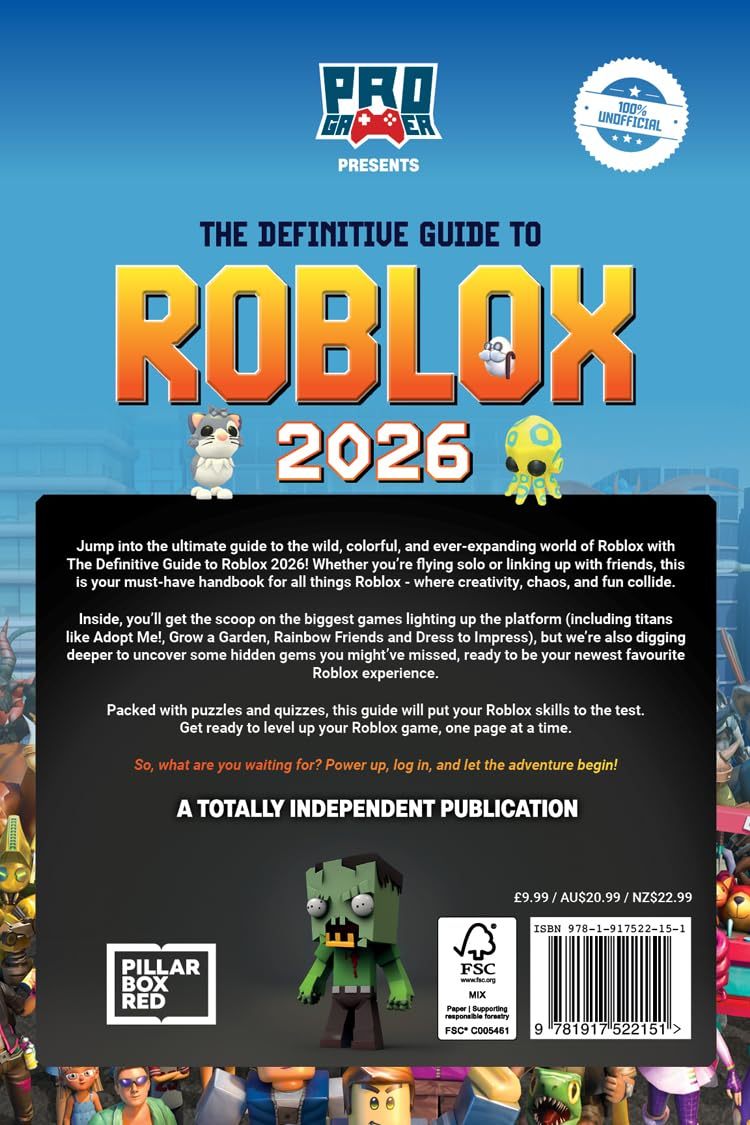

How To Add Games To Your Roblox 2026 Roblox Tutorial YouTube . How To Update Roblox In 2026 Fix Error Code 280 On PC Mobile Xbox Roblox Update It.webp. Definitive Guide To Roblox 2026 TM 07169 Definitive Guide To Roblox 2026 . The Definitive Guide To Roblox Annual 2026 Phillips Toys 61HEet5s7ML 1445x . How To Add Roblox To Your Desktop Or Home Screen On PC 2025 Guide
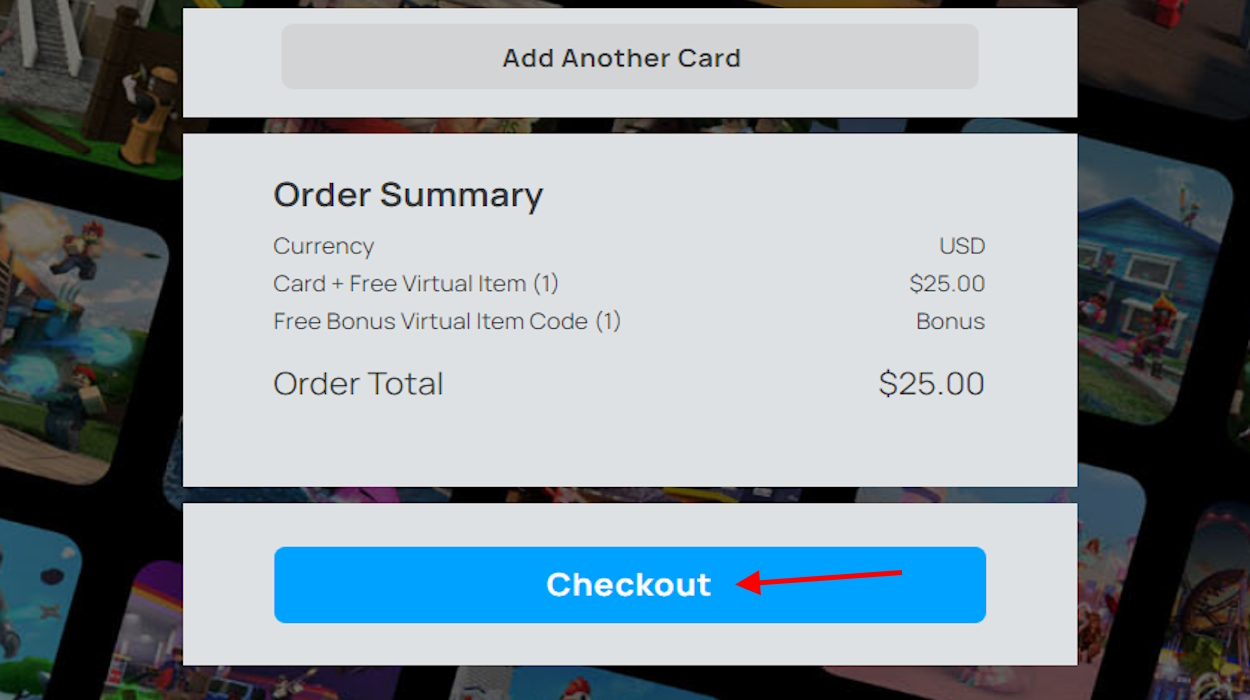

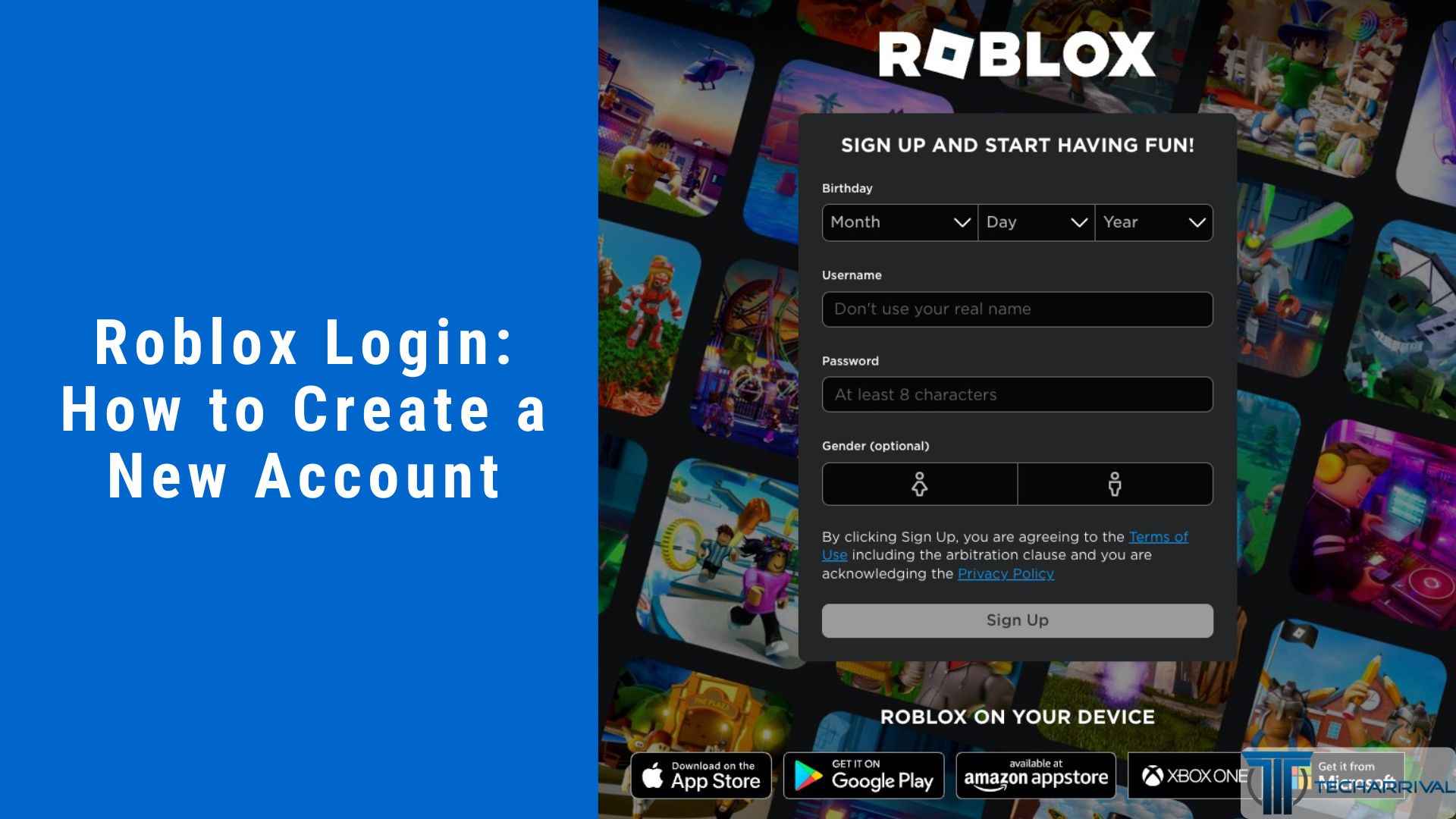


How To Add A Roblox Card To Your Account In 2026 Checkout Option For Roblox Gift Carde . How To Add People Roblox Easily Your 2026 Guide How To Add Friends On. How To Create A Roblox Account In 2026 What You Need Roblox Login How To Create A New Account . How To Get Roblox On Nintendo Switch 2026 YouTube . Roblox 2026 Logo REVEALED New Color New Look YouTube Maxres2




How To Create Add Another Roblox Account 2024 YouTube . How To Add People Roblox Easily Your 2026 Guide . A Mother Or Father S Information To Utilizing Roblox In 2026 Ivugangingo 2026 Parental Guide For Roblox Usage UnicMinds . How To Message On Roblox 2026 A Quick Guide . How To Download Roblox Images In 2026 A Quick Guide


How To Redeem Roblox Gift Card 2026 Mobile PC Guide Roblox Gift Card.webp. How To Add Accessories In Roblox Studio Complete Guide 2024 YouTube . How To Publish A Roblox Game 2026 Complete Roblox Studio Tutorial . How To Add People Roblox Easily Your 2026 Guide . How To Add A Roblox Card To Your Account In 2026 Tap On Redeem Card


How To Add An Image In Roblox Studio Quick Easy Tutorial YouTube . How To Add A Roblox Card To Your Account In 2026 . How To Publish A Game On Roblox In 2026 Roblox YouTube . How To Add People Roblox Easily Your 2026 Guide Add Friend Roblox Xbox . How To Imstall Roblox Easily In 2026 Your Ultimate Guide Install Roblox Step 30

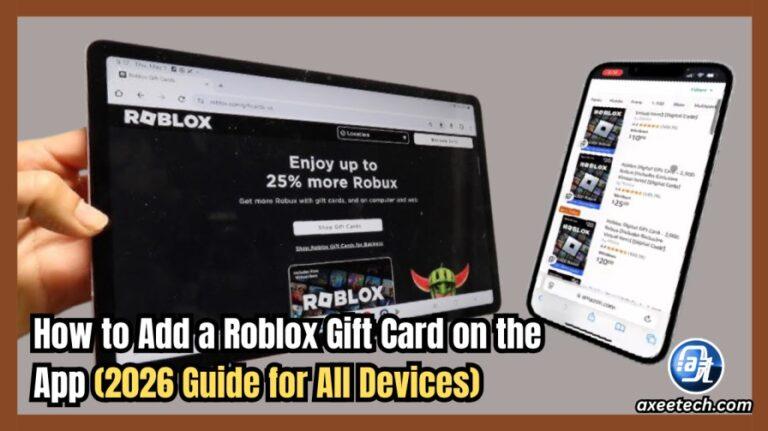
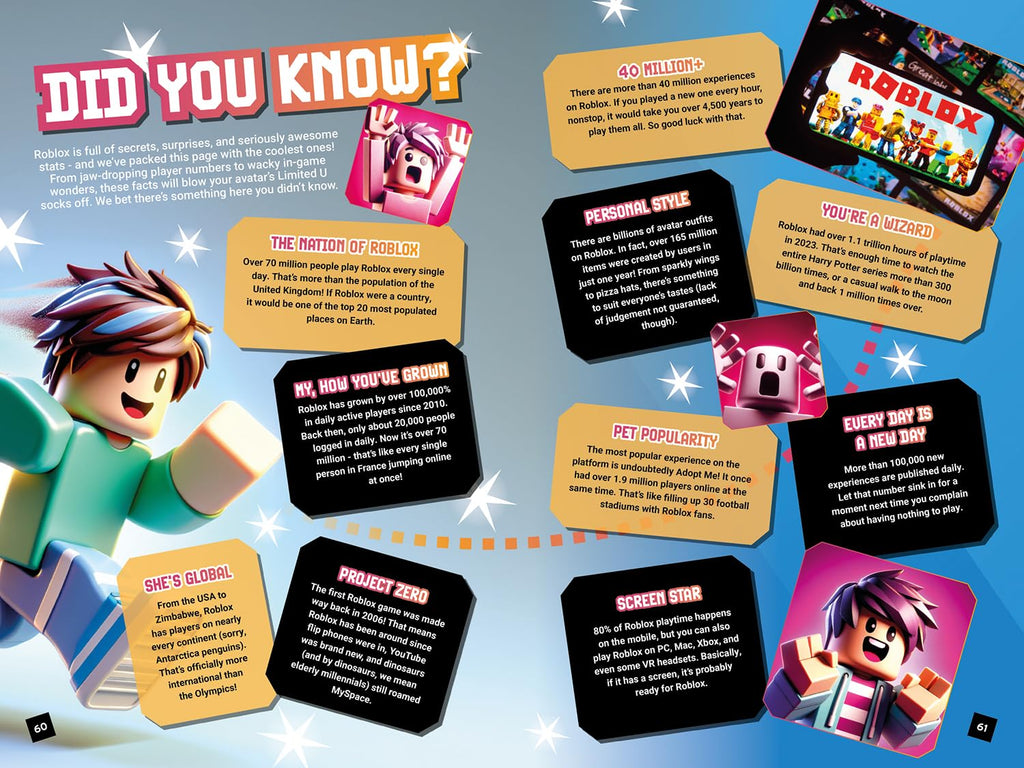
How To Add A Roblox Card To Your Account In 2026 . Roblox At GDC 2026 Where To Find Us All Week Roblox. How To Add A Roblox Gift Card On The App 2026 Guide For All Devices How To Add Roblox Gift Card On App Hero 768x431 . The Definitive Guide To Roblox 2026 Gadget Stall 1024x1024 . How To Make A Roblox Game With AI Complete 2026 Guide Image


Roblox Tutorial How To Add Events To Your Roblox Game YouTube . How To Message On Roblox 2026 A Quick Guide . How To Create A Roblox Account In 2026 What You Need Roblox Studio Home . A Roblox Movie 2026 Teaser Trailer YouTube