Discover the essential guide to NZXT Kraken software, known as CAM, designed for serious gamers balancing life and play. This comprehensive resource delves into optimizing your NZXT Kraken liquid cooler, from initial setup and crucial performance monitoring to stunning RGB customization. Learn how to troubleshoot common issues, fine-tune fan curves for peak efficiency, and ensure your gaming PC runs smoothly, quietly, and reliably. For the average gamer, typically around 36 years old, who values a stable, high-performance system without the fuss, this guide offers practical, actionable advice. Maximize your hardware's potential and enjoy a seamless, immersive gaming experience with expert tips on NZXT Kraken software, helping you maintain that perfect balance between epic gameplay and everyday responsibilities. Stay current, save time, and elevate your rig's performance with this essential companion.
How do I fix NZXT CAM not detecting my Kraken?
If NZXT CAM isn't detecting your Kraken cooler, start by checking all physical connections, especially the USB header from the cooler to your motherboard. A loose cable is a common issue. Then, try restarting your PC. If it persists, ensure your CAM software is updated, run it as administrator, and temporarily disable any other hardware monitoring software that might conflict. Reinstalling CAM cleanly can also resolve persistent detection problems.
What are the best fan curves for NZXT Kraken in CAM?
The best fan curves in NZXT CAM balance cooling efficiency with noise. A good starting point is to set a custom curve based on liquid temperature, not CPU. Keep fans low (20-30%) at idle (e.g., 30C liquid temp) for quietness, then gradually ramp up to 60-70% at typical gaming temps (e.g., 45-50C liquid temp), and max out only when absolutely necessary (e.g., 60C+ liquid temp). Always test and adjust based on your specific case airflow and component heat.
Can NZXT CAM control fan speeds for non-NZXT fans?
NZXT CAM primarily controls fans connected directly to your NZXT Kraken cooler or an NZXT Smart Device. While it can often display speeds for fans connected to your motherboard if CAM detects the motherboard, direct control over non-NZXT fans connected to generic motherboard headers is limited. For full control of all your case fans, ensure they are connected to an NZXT fan controller or use your motherboard's dedicated software.
Why is my Kraken RGB not working in CAM?
If your Kraken RGB isn't working in CAM, first verify that the cooler's RGB cable is securely connected to the pump and any integrated NZXT RGB controllers. Next, check the Lighting tab in CAM to ensure the correct lighting effects are selected and not set to 'Off'. Update CAM to the latest version, as bug fixes often address lighting issues. Finally, try reinstalling CAM or checking for conflicts with other RGB software.
Is NZXT CAM resource intensive for gaming PCs?
No, NZXT CAM is generally not resource intensive for modern gaming PCs. It's designed to be lightweight, typically consuming minimal CPU and RAM in the background. While any software uses some resources, CAM's impact is usually negligible compared to the benefits of its monitoring and control features. If you experience performance issues, ensure CAM is updated and consider temporarily closing other background applications.
How often should I update NZXT CAM software?
You should aim to update your NZXT CAM software whenever a new version is released. CAM usually prompts you automatically. Regular updates ensure you have the latest bug fixes, performance optimizations, security patches, and compatibility for new hardware. Staying current helps maintain optimal functionality and prevents potential issues with your Kraken cooler and other NZXT devices.
Where can I download the latest NZXT CAM software?
You can always download the latest official NZXT CAM software directly from the NZXT website. Navigate to the 'Software' or 'Support' section of NZXT's official site to find the most current version. Always download from the official source to ensure authenticity, stability, and to avoid any potentially harmful unofficial versions.
Hey there, fellow gamers! Ever feel like you're juggling a thousand things? Work, family, that ever-growing Steam library – it's a lot. You finally carve out some precious time to game, only to find your PC acting up, temps spiking, or RGB lights doing their own thing. It's frustrating when your tech doesn't cooperate, especially when all you want is to dive into a new world or clutch a win with your buddies. You're not alone. Many of us, part of the 87% of US gamers who play regularly, averaging over 10 hours a week, often find ourselves balancing our passion with life's demands. We value relaxation, fun, and perhaps a little skill-building, but performance optimization without endless tweaking is key.
That's where your NZXT Kraken liquid cooler and its companion software, NZXT CAM, come in. This powerful duo is designed to keep your CPU cool and your rig looking slick, but getting the most out of it requires a little know-how. From ensuring your processor doesn't throttle during intense raids to making your setup glow just right, NZXT CAM is your central command. This guide is built specifically for you – the gamer who wants to understand and optimize their system efficiently, without becoming a full-time IT expert. We'll cut through the noise, address common pain points, and get you back to what matters: enjoying your games. Let's unlock the full potential of your NZXT Kraken software and transform your gaming experience.
What is NZXT Kraken Software CAM and Why Do I Need It?
NZXT Kraken software, universally known as CAM, is the control hub for your NZXT ecosystem, especially your Kraken liquid CPU cooler. Think of it as the brain behind the brawn. It's a free utility that allows you to monitor your PC's vital statistics in real time, from CPU and GPU temperatures to fan speeds and usage. Beyond just monitoring, CAM enables comprehensive control over your Kraken cooler's performance and aesthetics. Without CAM, your Kraken might still function, but you'd miss out on critical customization and optimization features, essentially running your premium hardware on autopilot.
For gamers, especially those who balance demanding jobs and family life, CAM is invaluable. It provides the tools to set custom fan curves, ensuring optimal cooling during intense gaming sessions like the latest AAA titles, without being distractingly loud during quieter moments. It's also where you personalize the vibrant RGB lighting on your Kraken Z-series display or X-series pump, making your rig uniquely yours. In a world where custom builds and streaming are increasingly popular, with social gaming dominating trends this month, having precise control over your system's performance and appearance is more important than ever.
How Do I Install and Set Up NZXT CAM for My Kraken Cooler?
Installing NZXT CAM is a straightforward process, but getting it right from the start saves a lot of headaches. First, download the latest version of CAM directly from the official NZXT website. Avoid third-party sites to ensure you get authentic, updated software free from potential issues. Once downloaded, run the installer as an administrator. Follow the on-screen prompts, which typically involve agreeing to terms and selecting an installation location. During installation, ensure your Kraken cooler is properly connected to your motherboard, specifically the USB header, as this is how CAM communicates with the device.
After installation, launch CAM. It may prompt you to create or log into an NZXT account. While not strictly necessary for basic functionality, an account allows cloud saving of your profiles and access to community features. Once logged in, CAM should automatically detect your Kraken cooler. If it doesn't, a simple PC restart or checking your USB connections can often resolve the issue. Navigating the CAM interface, you'll find sections for monitoring, cooling, lighting, and power. Take a moment to explore these, as initial setup will involve creating your preferred cooling and lighting profiles, tailored to your gaming habits and aesthetic preferences.
What Are the Key Features of NZXT CAM for Performance Monitoring?
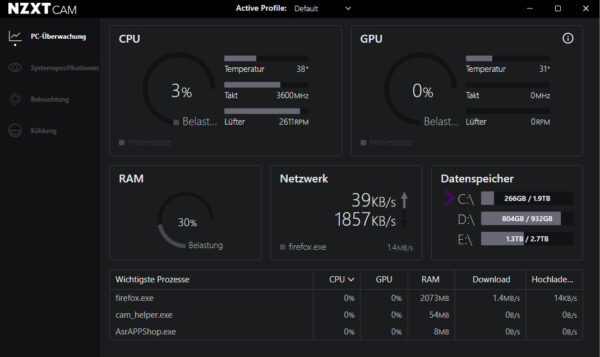
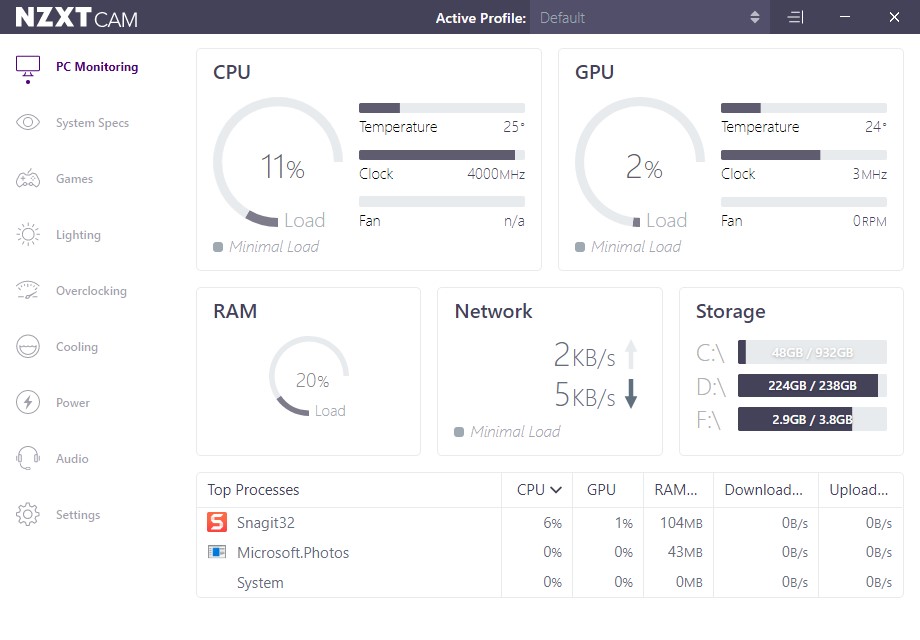
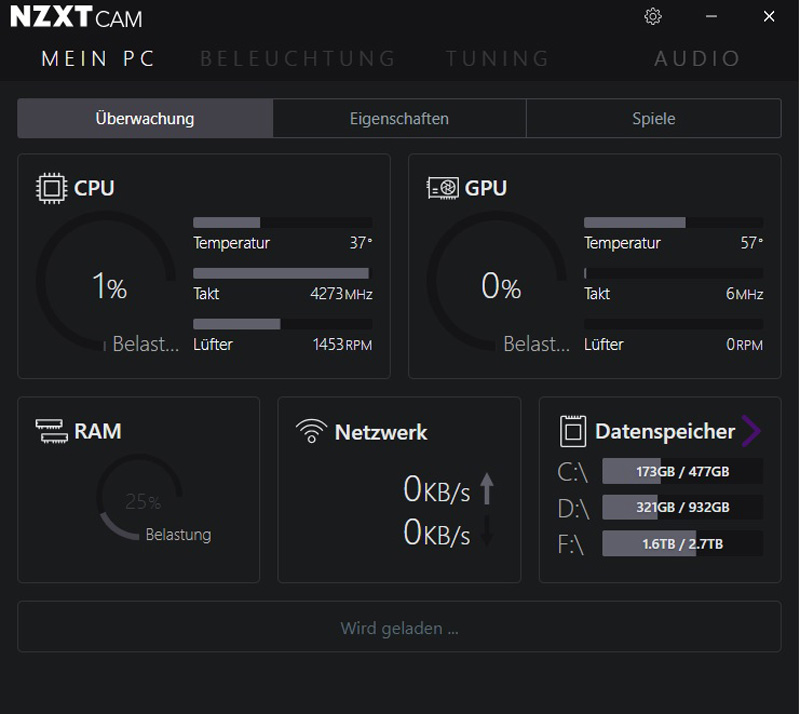
NZXT CAM is a robust monitoring tool, offering a comprehensive overview of your PC's health. Its dashboard provides real-time data on critical components. You can instantly see your CPU and GPU temperatures, clock speeds, and usage percentages. This is crucial for identifying if your system is overheating or bottlenecking during gameplay, common pain points for busy gamers wanting smooth performance.
- Temperature Tracking: Monitor CPU, GPU, and even Kraken liquid temperatures. This insight helps you understand your cooling efficiency.
- Component Usage: See how much your CPU, GPU, RAM, and storage are being utilized. This helps diagnose performance issues during gaming or heavy workloads.
- Fan Speed Reporting: View the RPM of your Kraken pump and connected case fans, ensuring they are operating as expected.
- FPS Overlay: An in-game overlay allows you to monitor key metrics without tabbing out, keeping you immersed while staying informed.
- Historical Data: CAM can log performance data over time, letting you analyze trends and make informed decisions about your system's long-term health.
These features empower you to take control, whether you're playing a cozy indie game to unwind or competing in a fast-paced esports title. Knowing your system's limits and status allows you to optimize settings for stable, enjoyable gaming sessions.
How Can I Customize RGB Lighting on My NZXT Kraken with CAM?
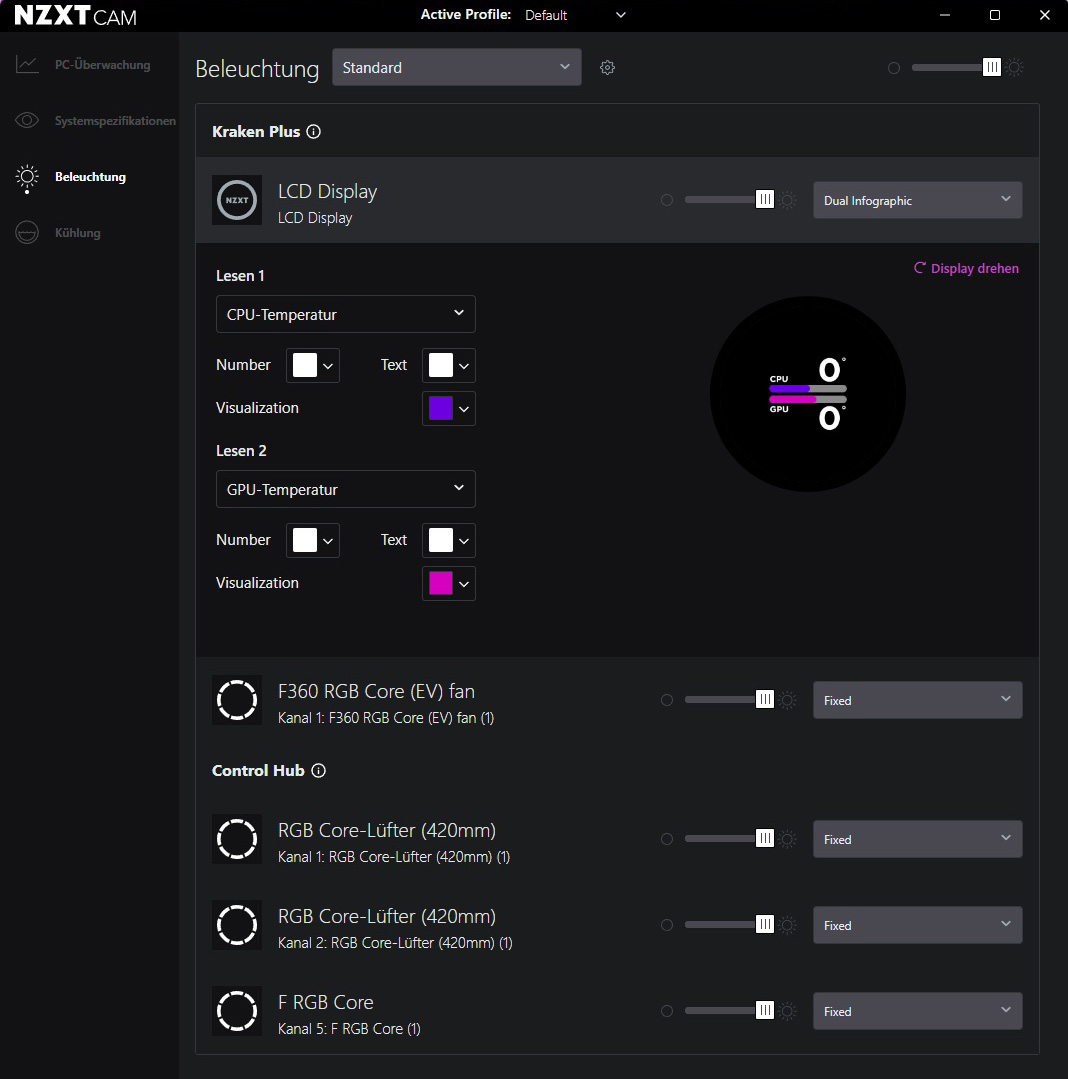
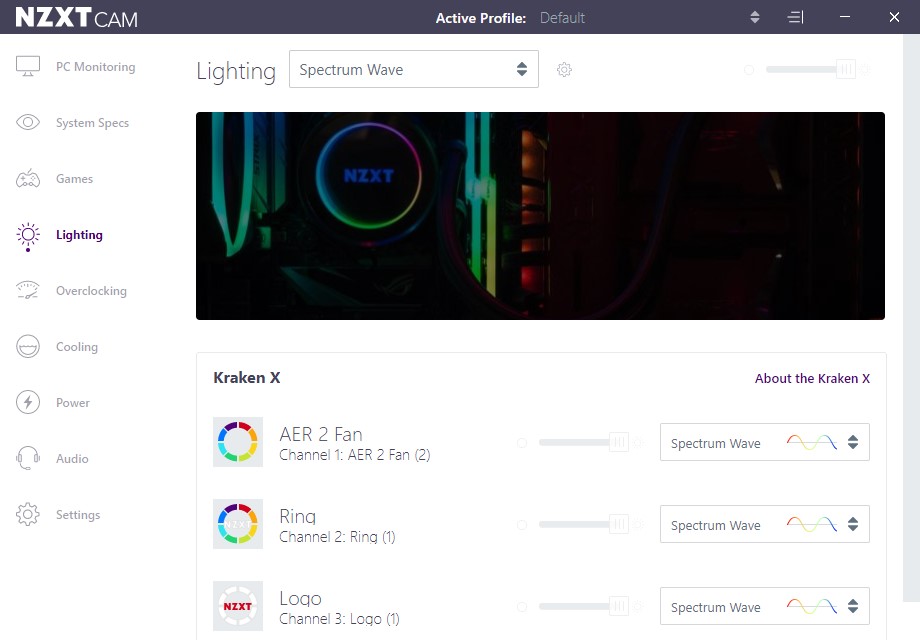
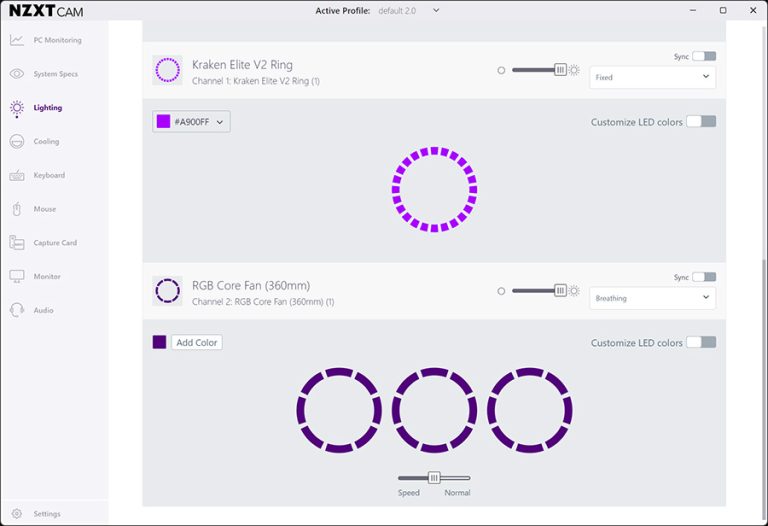
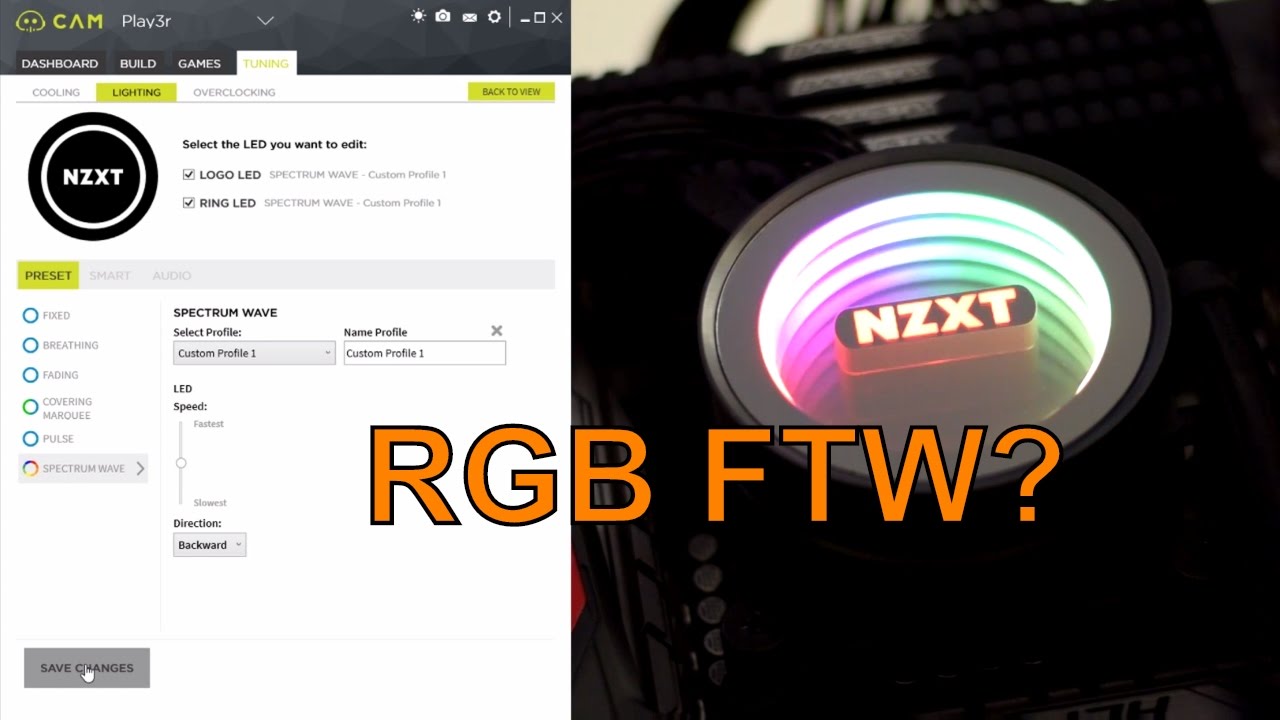
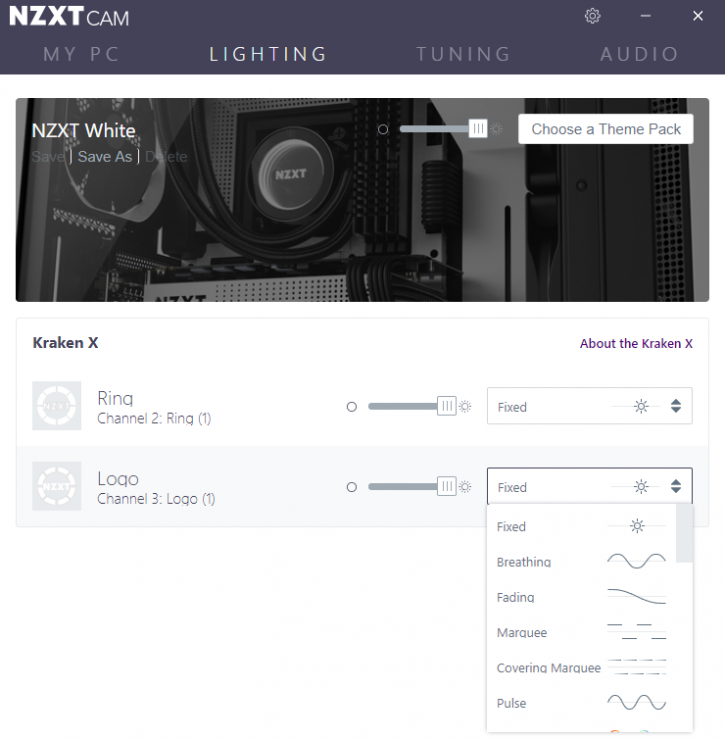
Customizing RGB lighting on your NZXT Kraken cooler is one of CAM's most fun and popular features. Whether you have an X-series with an infinity mirror or a Z-series with a customizable LCD screen, CAM provides a user-friendly interface to make your rig shine. The Lighting tab within CAM is where all the magic happens. Here, you'll find a wide array of preset lighting effects, from static colors and breathing patterns to reactive modes that respond to audio or temperature changes.
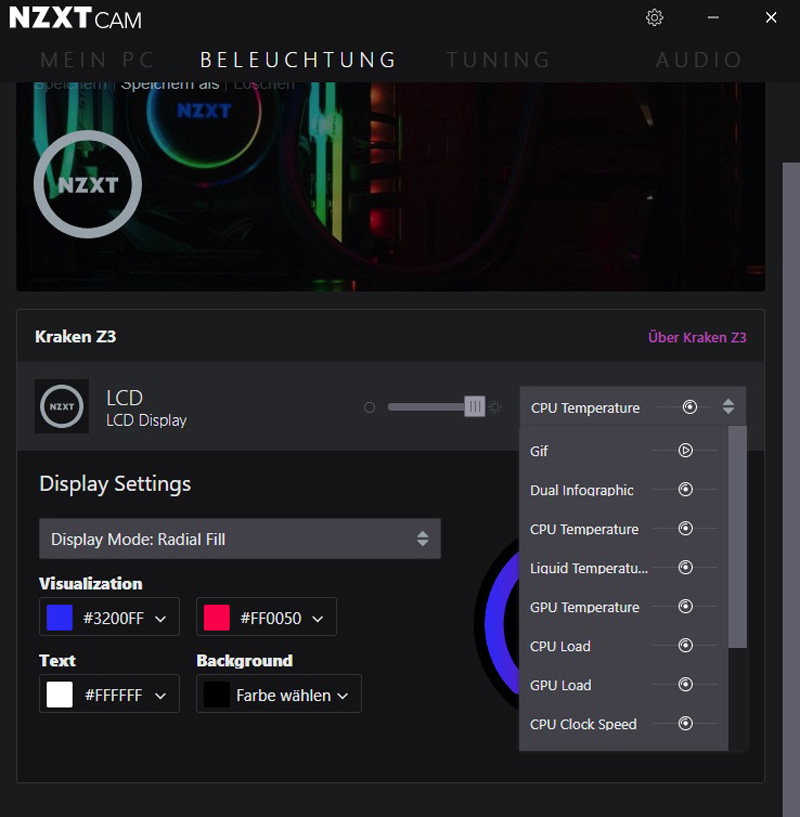
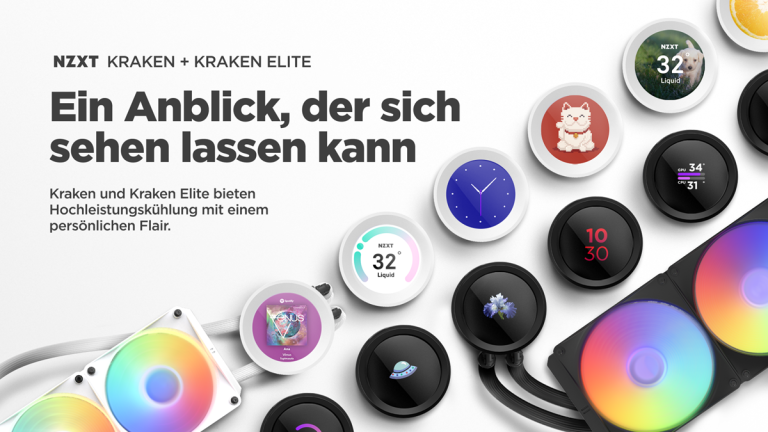
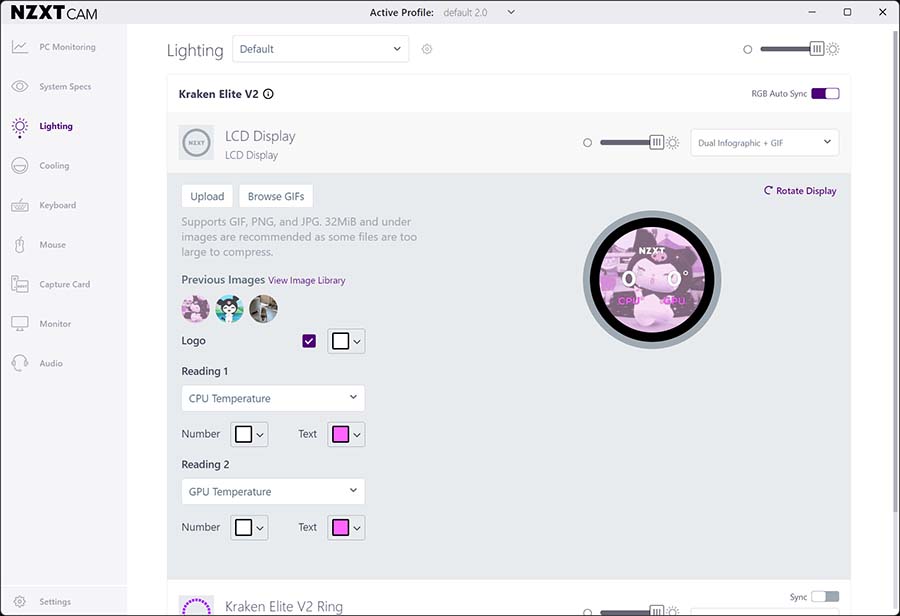
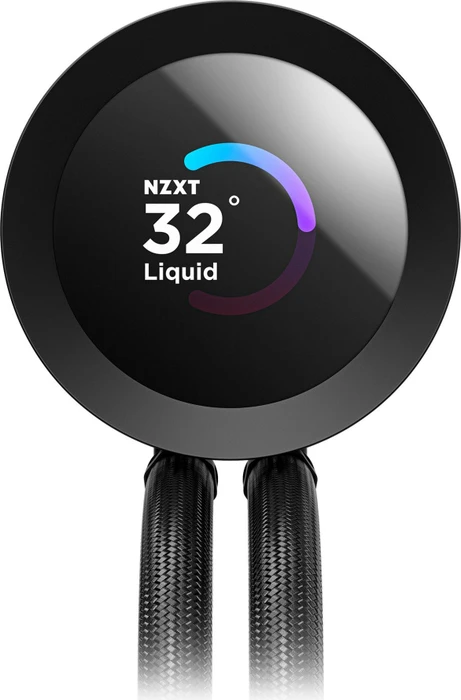
For the Kraken Z-series, the customization goes even further. Its vibrant LCD screen can display system info, GIFs, or even static images, allowing for unparalleled personalization. You can upload your favorite meme, display your CPU temperature, or showcase your gamer tag right on your cooler's pump. CAM makes this process intuitive: simply select your Kraken device, choose an effect, and adjust colors, speed, and direction. You can even synchronize lighting across multiple NZXT RGB components, creating a cohesive and stunning visual theme for your entire PC. This level of aesthetic control is a huge draw for gamers who want their setup to reflect their personality and style, a growing trend in the gaming community.
Troubleshooting Common NZXT CAM Software Issues
Even the best software can sometimes be a bit finicky. For NZXT CAM, common issues include coolers not being detected, RGB lighting not working, or performance monitoring discrepancies. Don't sweat it; most problems have straightforward solutions. If CAM isn't detecting your Kraken, first check all USB connections to your motherboard and the cooler itself. A loose cable is a surprisingly common culprit. Sometimes, simply restarting your PC or even reinstalling CAM cleanly can resolve detection issues.
Another frequent problem involves conflicts with other monitoring software. Programs like MSI Afterburner, HWiNFO, or Corsair iCUE can sometimes interfere with CAM's ability to communicate with your hardware. Try temporarily disabling other monitoring software to see if CAM starts working correctly. Always ensure you're running the latest version of CAM, as NZXT frequently releases updates that include bug fixes and improved compatibility. Finally, try running CAM as an administrator; this can sometimes grant it the necessary permissions to access hardware sensors properly. A quick visit to the NZXT support forums or Reddit's NZXT community can also provide solutions for more niche problems, demonstrating the power of social gaming communities beyond just gameplay.
Tips for Optimizing Kraken Cooling Performance through CAM
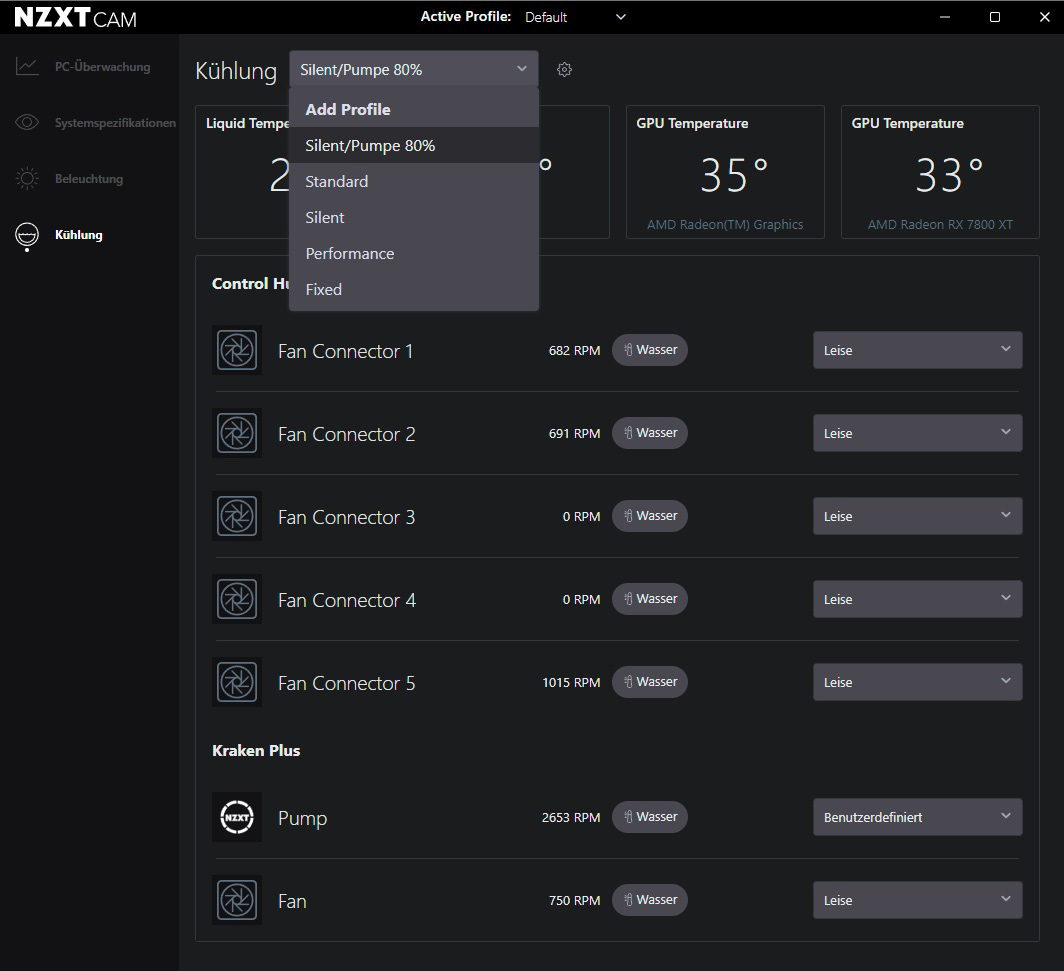
Maximizing your Kraken's cooling potential through NZXT CAM is all about smart fan and pump curve management. The default settings are generally good, but custom profiles can significantly enhance performance and reduce noise. In the Cooling tab, you'll find options to adjust fan and pump speeds based on liquid temperature, CPU temperature, or even GPU temperature. For most gamers, setting curves based on liquid temperature (Kraken's internal coolant temp) provides the most stable and responsive cooling.
Here are some tips for effective optimization:
- Custom Fan Curves: Create a curve that ramps up fan speed progressively as temperatures rise. Start with low RPMs at idle (e.g., 20-30% at 30°C) for quiet operation, then increase steadily as temps hit gaming levels (e.g., 60-70% at 50°C), and max out only for extreme conditions (100% at 70°C+). This ensures efficient cooling without constant fan speed fluctuations.
- Pump Speed: For optimal performance and longevity, it's generally recommended to run your Kraken pump at a consistent, high speed (e.g., 80-100%) or at least a minimum of 60%. The pump generates less noise than fans, and a higher speed ensures maximum coolant flow, which is crucial for heat transfer.
- Test and Adjust: After setting a new curve, run a demanding game or benchmark for 30 minutes. Monitor your temperatures in CAM and adjust the curve as needed. The goal is to find a balance between effective cooling and acceptable noise levels for your specific setup and preferences.
- Profiles for Different Activities: Consider creating multiple profiles: one for quiet browsing/work, one for moderate gaming, and one for heavy-duty gaming or content creation. Switch between them easily in CAM.
These adjustments can make a real difference, especially during prolonged gaming sessions or when streaming, helping you maintain stable frame rates and prevent thermal throttling, which is a common concern for gamers investing in high-end hardware.
Does NZXT CAM Impact Gaming Performance?
This is a common question among performance-conscious gamers. Generally, NZXT CAM itself has a minimal impact on gaming performance. Modern PCs are powerful enough to run background applications like CAM without significant overhead. The software is designed to be lightweight, primarily interacting with hardware sensors and sending commands to your NZXT devices.
However, like any background application, if your system is already stretched to its limits or if CAM encounters a bug, it could theoretically consume a small amount of CPU or RAM. In most cases, the benefits of using CAM for monitoring and optimizing your cooling (preventing thermal throttling) far outweigh any negligible resource usage. Many US gamers, who play mobile games and PC/console titles, already have multiple apps running, from Discord for social play to streaming overlays. The key is ensuring CAM is up-to-date and running smoothly. If you ever notice an unusual performance dip, temporarily closing CAM to see if it resolves the issue is a good troubleshooting step. For the vast majority, CAM runs quietly in the background, doing its job without interrupting the fun.
How Do I Keep NZXT CAM Software Updated for Best Results?
Keeping your NZXT CAM software updated is crucial for performance, stability, and access to new features. NZXT regularly releases updates that include bug fixes, compatibility improvements for new hardware (like the latest GPUs or CPUs), and sometimes even new lighting effects or monitoring capabilities. Running outdated software can lead to detection issues, performance anomalies, or missed optimizations.
CAM usually prompts you when an update is available. When you see this notification, it's generally best to accept and install the update. The process is typically quick and seamless. If you prefer to manually check, you can do so within the CAM application itself, often found in the settings or a 'gear' icon. Periodically visiting the official NZXT website's CAM download page is also a good habit, especially if you suspect you're experiencing issues that might be resolved by a newer version. Staying current ensures your Kraken cooler and its software are working in perfect harmony, providing you with the best possible cooling and customization experience, aligning with the gamer's desire to stay current without buying into unnecessary hype.
Are There Alternatives to NZXT CAM for Kraken Control?
While NZXT CAM is the official and most feature-rich software for controlling your Kraken cooler, the question of alternatives often arises, especially if users experience persistent issues with CAM. For basic functionality like controlling pump and fan speeds based on CPU temperature, some Kraken models, particularly older ones, might have limited control options through the motherboard's BIOS or third-party fan controllers. However, these methods typically lack the detailed monitoring, sophisticated RGB customization, and comprehensive sensor data that CAM provides.
There are also open-source projects or community-developed tools that attempt to interface with NZXT hardware. These often aim to provide basic control without the full CAM suite. However, using unofficial software comes with risks, including potential stability issues, lack of full feature support, and even warranty concerns. For the average gamer who values reliability and ease of use, sticking with the official NZXT CAM software is almost always the recommended path. It's purpose-built for Kraken coolers, ensuring full compatibility and access to all advertised features, offering a complete, integrated experience.
Balancing Gaming and Life with an Optimized Rig: The CAM Advantage
For many of us, gaming is a vital part of unwinding after a long day of work, connecting with friends across different time zones, or simply escaping into another world. The average gamer, at 36, often has a family and career, making time precious. An optimized rig means less frustration and more pure enjoyment. This is where NZXT CAM truly shines. By allowing you to quickly set up and forget about cooling and lighting, it minimizes the time spent tweaking and maximizes the time spent playing. Imagine jumping into a social gaming session, a trending cozy game, or even a competitive esports match, knowing your PC is performing optimally without constant checks. This reliability ensures that your limited gaming window is spent on fun, not troubleshooting.
Furthermore, the detailed monitoring features allow you to keep an eye on your system's health, helping you make informed decisions about hardware upgrades on a budget. You can identify if your CPU is the bottleneck, or if your cooling is insufficient, guiding your next smart purchase. In a market constantly bombarded with hype, CAM helps you cut through it by providing real data about your actual system. It's about empowering you to maintain a high-performance, personalized gaming experience that seamlessly integrates with your busy life, offering stress relief and skill-building opportunities without adding to your workload.
So, there you have it! Mastering your NZXT Kraken software, CAM, is an essential step in building and maintaining a top-tier gaming rig. It's not just about flashy lights; it's about performance, stability, and ultimately, getting the most enjoyment out of your valuable gaming time. By understanding its features, troubleshooting common quirks, and optimizing your settings, you're empowering yourself to have a smoother, more immersive, and personalized gaming experience. This helps you balance gaming with your responsibilities, ensuring your relaxation time is truly relaxing. What's your biggest gaming challenge with PC optimization? Comment below and let's help each other out!
FAQ Section
Is NZXT CAM necessary for my Kraken cooler to function?
While your Kraken cooler will provide basic cooling without CAM, the software is essential for full functionality, including pump/fan curve customization, RGB lighting control, and detailed system monitoring. Without it, your cooler runs on default settings, missing out on optimal performance and personalization.
Can I control other brands' RGB with NZXT CAM?
NZXT CAM is primarily designed for NZXT's own RGB ecosystem. While it might offer limited compatibility with certain motherboard RGB headers or integrate via bridges with other software, direct control over all third-party RGB components is generally not supported. For universal control, you might need dedicated software or a hardware controller.
Why is my Kraken cooler showing high temperatures in CAM?
High temperatures in CAM could be due to several factors: insufficient thermal paste, poor case airflow, clogged radiator fins, or an improperly seated pump. Also, aggressive fan curves in CAM might be needed. Ensure your system is clean, connections are secure, and fan profiles are set appropriately for your workload.
How do I reset NZXT CAM settings?
To reset NZXT CAM settings, you can often find a 'Reset Settings' option within the CAM application's settings menu itself. If that doesn't work or for a cleaner slate, you might need to uninstall CAM, manually delete any remaining configuration files in your AppData folder (e.g., %APPDATA%/NZXT CAM), and then reinstall the software.
Does NZXT CAM use a lot of system resources?
For most modern gaming PCs, NZXT CAM uses minimal system resources. It's designed to run efficiently in the background without significantly impacting gaming performance. If you notice unusual resource consumption, ensure your CAM software is updated to the latest version, as performance optimizations are regularly included in updates.
What's the difference between Kraken X and Z series in CAM?
The primary difference in CAM for Kraken X and Z series is the Z series' additional functionality for its customizable LCD screen. While both allow control over pump speed, fan curves, and RGB lighting, the Z series offers unique options to display custom images, GIFs, and system information directly on the pump, which are managed within CAM's lighting and display settings.
NZXT Kraken software features CAM software guide liquid cooler control RGB customization system monitoring performance optimization troubleshooting tips fan curve management real time data temperature control
35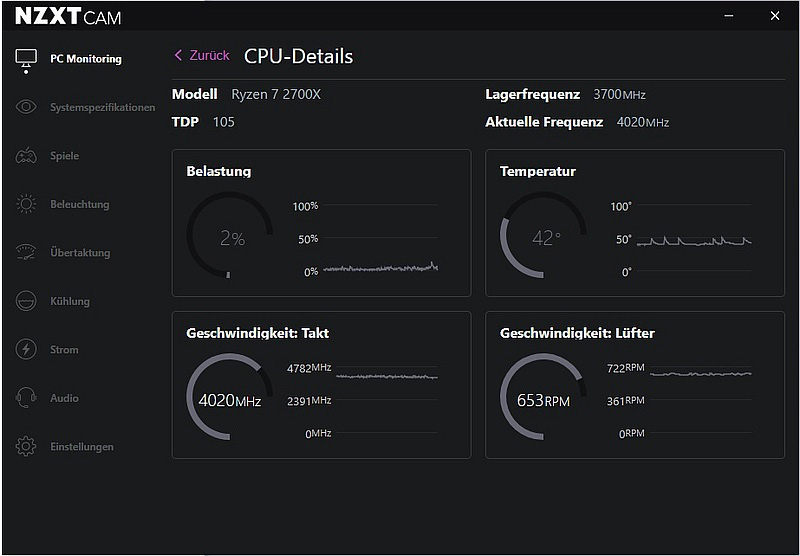
NZXT Kraken X53 Review NZXT CAM Software Nzxt Kraken X53 43 . NZXT Kraken Z73 Review NZXT CAM Software Nzxt Kraken Z73 41 . NZXT Kraken Plus 360 RGB Test NZXT CAM Software Nzxt Kraken Plus 360 Rgb 30 . NZXT Update F R Kraken Modelle Und NZXT CAM Software Hardware Inside NZXT1 768x432 . NZXT Kraken X63 RGB AIO Liquid Cooler Review Nzxt Cam 4


NZXT Kraken Elite 360 RGB V2 Cooler Review GeekaWhat MPI NZXT CAM Software NZXT Kraken Elite 360 RGB V2 2024 Fans 768x526 . NZXT Kraken Plus 360 RGB Test NZXT CAM Software Nzxt Kraken Plus 360 Rgb 37 . NZXT Kraken Elite 360 RGB V2 Cooler Review GeekaWhat MPI NZXT CAM Software NZXT Kraken Elite 360 RGB V2 2024 . NZXT Kraken Elite 360 RGB 360 Mm AIO Mit IPS LCD Und RGB Kraken Elite Rgb Quicker Primary Lg . Win A Free Gaming PC With NZXT And Intel Kraken Plus Social Banners Blog 1920x1080 EN E8a64deb 6809 4706 9204

NZXT Kraken Plus 360 RGB Test NZXT CAM Software Nzxt Kraken Plus 360 Rgb 24 600x357 . NZXT Kraken Plus 360 RGB Test NZXT CAM Software Nzxt Kraken Plus 360 Rgb 1024x488 . Meet The New Kraken Plus 2 CPU Cooler Hero . NZXT Kraken X53 RGB AIO Liquid Cooler Review Nzxt Cam 1 . NZXT Kraken X42 X52 X62 RGB With NZXT CAM Software


NZXT Kraken Core RGB Mai 2026 Preise Billiger De NZXT Kraken Core RGB 240 Schwarz RL KR24C B1.webp. NZXT Kraken Z73 Test NZXT CAM Software Nzxt Kraken Z73 45 . Meet The New Kraken Plus 1722442439 1920x1080 Nzxt Flex Enen . NZXT Kraken Elite 360 RGB Black Ab 293 90 2026 N.webp. NZXT Kraken Z73 Test NZXT CAM Software Nzxt Kraken Z73


BEWERTUNG 2026 NZXT Kraken Elite 240 RGB Wei Infos YouTube . Annoyed By Bursty Fans And Bloated Apps Engineer Writes Software In . Next Gen NZXT Kraken And Kraken Elite AIO Coolers And RGB H Series 24450 Nzxt Kraken 2023 Lineup . NZXT Kraken Plus 360 RGB V2 Bigbyte IT World 2026 New Socket Cpu NZXT Kraken Plus 360mm Black AIO Cooler . NZXT Unleashes A New New Kraken Series 7yuhk


Nzxt Kraken Software Belasnet 793236468 Orig . NZXT Unleashes A New New Kraken Series 4561 . NZXT Kraken Elite 360 RGB Black Ab 293 90 2026 N.webp. What NZXT Cases Are The Kraken Elite Series Compatible With NZXT. NZXT Kraken Plus 360 Black Ab 172 89 2026 Geizhals N.webp



NZXT Kraken Elite 280 RGB 280mm AIO W IPS LCD RGB Kraken Elite Rgb A Display Bg Lg . Nzxt Kraken Software Heritagego 855168677 Orig . NZXT Kraken X63 Review Image3 . Nzxt Kraken Control Windows Version TWPFPC Nzxt Kraken Z73 33 . NZXT CAM Free PC Monitoring And Software Beat 2 Home Kraken Elite Beat 3 Primary Sm