Unlocking peak performance from your NVIDIA graphics card is essential for today's busy gamers. This comprehensive guide navigates the intricate settings of your NVIDIA GPU, ensuring you achieve optimal frame rates and stunning visuals without sacrificing precious gaming time. Learn how to update drivers, tweak NVIDIA Control Panel settings, and fine-tune in-game options to maximize your gaming experience, whether you are unwinding after work or climbing competitive ladders. We address common pain points like stuttering, low FPS, and balancing graphics quality, providing actionable steps to get your system running smoothly. Discover expert tips for G-SYNC setup, power management, and identifying performance bottlenecks. Stay current with 2026 gaming trends, balancing immersive gameplay with life's demands. Optimize your NVIDIA card today for a consistently superior gaming journey.
Q: How Do I Ensure My NVIDIA Drivers Are Always Optimized For The Latest Games?
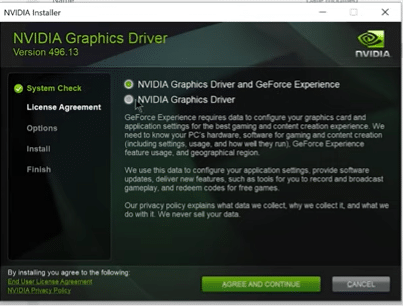
A: Keeping your NVIDIA drivers up-to-date is the single most critical step for optimal gaming performance. NVIDIA consistently releases "Game Ready Drivers" that are specifically tuned for new game launches, offering performance improvements and bug fixes. To ensure you are always optimized, regularly visit the official NVIDIA drivers website or use the GeForce Experience application to check for and install the latest Game Ready Driver. Always perform a "clean installation" when prompted to remove any potentially conflicting older driver files, guaranteeing a fresh and stable setup for your gameplay.
Q: Which NVIDIA Control Panel Settings Should I Prioritize For Maximum FPS In Competitive Titles?
A: For competitive gaming, prioritizing raw frame rate and minimal input lag is paramount. In the NVIDIA Control Panel, navigate to "Manage 3D settings" and set "Power Management Mode" to "Prefer Maximum Performance." Crucially, enable "Low Latency Mode" and select "Ultra." For "Texture filtering - Quality," choose "High Performance" to prioritize speed over minute visual details. Also, ensure "Vertical sync" is "OFF" unless you experience severe tearing without G-SYNC, as V-Sync introduces input lag. These settings work together to provide the snappiest, highest-FPS experience.
Q: Can I Improve Gaming Performance On My NVIDIA GPU Without Upgrading Hardware?
A: Absolutely! Many gamers, especially those on a budget or balancing life, want to maximize existing hardware. Significant performance gains can be achieved by: 1. Ensuring the latest Game Ready drivers are installed. 2. Optimizing NVIDIA Control Panel settings to "Prefer Maximum Performance" and utilizing "Low Latency Mode." 3. Fine-tuning in-game graphics settings, focusing on reducing demanding options like shadows, anti-aliasing, and ray tracing. 4. Enabling NVIDIA DLSS (if supported by your GPU and game) provides a substantial FPS boost. These software tweaks often provide a noticeable improvement without spending a dime on new components.
Q: How Does G-SYNC Work, And What Are The Best Settings For It?
A: G-SYNC is NVIDIA's adaptive sync technology that eliminates screen tearing and minimizes stuttering by synchronizing your monitor's refresh rate with your GPU's frame rate. To configure it, first ensure your monitor and GPU are G-SYNC compatible and connected via DisplayPort. In the NVIDIA Control Panel, enable G-SYNC under "Set up G-SYNC," selecting "Enable for full screen mode." To prevent reintroducing tearing, it is vital to cap your in-game frame rate a few frames below your monitor's maximum refresh rate (e.g., 141 FPS for a 144Hz monitor). This ensures the smoothest, tear-free gaming experience.
Q: What Role Does The "Power Management Mode" Play In NVIDIA GPU Performance For Gaming?
A: The "Power Management Mode" in the NVIDIA Control Panel directly influences how your graphics card operates under load. Setting it to "Prefer Maximum Performance" is highly recommended for gaming. This ensures your GPU consistently runs at its highest clock speeds, preventing any power-saving measures from causing performance dips or micro-stutters. While "Optimal Power" might save a tiny bit of electricity during idle times, it can introduce latency as the card ramps up. For dedicated gaming sessions, "Prefer Maximum Performance" guarantees your GPU is always ready to deliver its full power, leading to more stable and higher frame rates.
Q: How Should I Configure NVIDIA Image Scaling (NIS) Compared To In-Game DLSS Or FSR?
A: NVIDIA Image Scaling (NIS) is a driver-level spatial upscaler that works on any NVIDIA GPU and with any game. It renders games at a lower resolution and then sharpens and upscales them to your native monitor resolution, providing an FPS boost. However, if your game supports NVIDIA DLSS (on RTX cards) or AMD FSR, those are generally preferred. DLSS offers superior image quality due to its AI-powered temporal upscaling, while FSR is a more advanced spatial upscaler than NIS. Only use NIS if DLSS or FSR are not available in-game, as it is a less refined solution that can introduce more visual artifacts.
Q: Why Is My NVIDIA GPU Underperforming In Games Even With Good Settings?
A: Several factors can cause underperformance despite seemingly good settings. First, check for a CPU bottleneck, where your CPU cannot keep up with your GPU, limiting its frames. Monitor CPU usage during gaming. Second, insufficient VRAM can cause stuttering; lower texture quality if VRAM is maxed. Third, check GPU and CPU temperatures for thermal throttling. Overheating reduces performance. Lastly, ensure background applications are not consuming excessive resources, and that Windows itself is fully updated. A clean driver reinstallation can also resolve underlying software conflicts.
Gaming in 2026 is more than just a hobby; for many US gamers, it is a crucial outlet for relaxation, connection, and even skill-building. With 87% of US gamers regularly diving into virtual worlds, often for 10+ hours a week, performance truly matters. But balancing work, family, and life means your gaming sessions are precious, and you cannot afford stuttering framerates or confusing settings. If you have ever felt frustrated trying to squeeze every last frame out of your NVIDIA graphics card, you are not alone. Many adult gamers, around age 36, crave seamless, immersive experiences without the hassle of endless tweaking. This guide is your trusted friend, here to show you exactly how to configure NVIDIA graphics card for gaming, transforming your system into a finely tuned gaming machine so you can focus on the fun, not the frustration.
From the latest driver updates to deep dives into the NVIDIA Control Panel and in-game adjustments, we will cover everything you need to know. We understand you value value for money and staying current without the hype. Let us cut through the noise and get you back to dominating your favorite titles, whether it is a cozy social game, a competitive esport, or exploring the latest VR experiment.
What Are The Essential First Steps For NVIDIA Graphics Card Optimization?
Before diving into complex settings, ensure your foundation is solid. The very first step to effectively configure NVIDIA graphics card for gaming is to make sure your software is up-to-date. Outdated drivers are a frequent culprit for performance issues, crashes, and missed optimization opportunities.
- Go to the official NVIDIA website (nvidia.com/drivers).
- Use the "GeForce Drivers" section to automatically detect your GPU or manually select your product type, series, and operating system.
- Always choose the latest Game Ready Driver. These drivers are specifically optimized for new game releases and provide the best performance and stability.
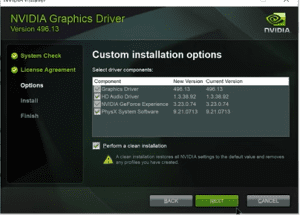
- Perform a clean installation by selecting "Custom" installation and then checking "Perform a clean installation." This removes old driver files that might cause conflicts.
2. Update Windows:
- Ensure your Windows operating system is fully updated. Go to Settings > Windows Update and check for any pending updates. System updates often include performance enhancements and bug fixes that can impact your GPU.
These initial steps often resolve many common performance issues and lay the groundwork for further optimization.
How Do I Access And Navigate The NVIDIA Control Panel For Best Gaming Performance?
The NVIDIA Control Panel is your central hub for advanced graphics card settings. Learning to navigate it is crucial for anyone wondering how to configure NVIDIA graphics card for gaming effectively.
To open the NVIDIA Control Panel:
- Right-click anywhere on your desktop.
- Select "NVIDIA Control Panel" from the context menu.
Once open, you will see several categories on the left. We will focus on the most impactful ones for gaming.
Key Sections To Focus On:
- 3D Settings: This is where the magic happens for performance.
- Display: For resolution, refresh rate, and G-SYNC settings.
Take your time to explore these sections. Understanding where settings are located will make future adjustments much easier.
Which Global 3D Settings Provide The Best Balance Of Quality And Performance?
Within the NVIDIA Control Panel's "Manage 3D settings," you can apply global settings that affect all your games, or program-specific settings. For a good starting point to configure NVIDIA graphics card for gaming, focus on global adjustments first.
Here are recommended global settings:
- Image Scaling: OFF (unless you know what you are doing): While NVIDIA Image Scaling (NIS) can boost FPS, it introduces a slight blur. Better handled by DLSS/FSR in-game.
- Background Application Max Frame Rate: OFF: Unless you have a specific reason to limit background apps.
- Low Latency Mode: ON or ULTRA: Reduces input lag. "Ultra" can be more aggressive and may slightly lower FPS on older cards, but generally beneficial for competitive play.
- Max Frame Rate: OFF: Let the game or monitor (G-SYNC) dictate. If you experience screen tearing without G-SYNC, you can set it to your monitor's refresh rate.
- Monitor Technology: G-SYNC (if applicable): If you have a G-SYNC compatible monitor, ensure this is selected. This provides tear-free, smooth gameplay.
- Power Management Mode: Prefer Maximum Performance: This ensures your GPU is always ready to deliver its full power, preventing clock speed drops.
- Preferred Refresh Rate (your monitor name): Highest Available: Set this to your monitor's highest refresh rate (e.g., 144Hz, 240Hz).
- Shader Cache Size: Driver Default: Generally fine as default.
- Texture filtering - Anisotropic sample optimization: ON: Improves texture quality at a distance with minimal performance cost.
- Texture filtering - Quality: Performance or High Performance: Prioritizes framerates over slight visual fidelity. For competitive gamers, this is key.
- Vertical sync: OFF (unless G-SYNC is off and you have tearing): V-Sync can cause input lag. If you have G-SYNC, it handles tearing. If not, only enable if screen tearing is unbearable.
Remember, these are starting points. Some games might benefit from specific overrides.
How Can I Optimize Individual Game Settings Using The NVIDIA Control Panel?
While global settings provide a baseline, specific games often benefit from tailored configurations. This is where per-game profiles shine when learning how to configure NVIDIA graphics card for gaming for a diverse game library.
To create a program-specific profile:
- In the NVIDIA Control Panel, go to "Manage 3D settings."
- Click on the "Program Settings" tab.
- Select the game from the drop-down list. If it's not there, click "Add" and browse for the game's executable file (e.g., game.exe).
Once selected, you can override global settings for that specific game. This is particularly useful for:
- Competitive Games (e.g., Valorant, Apex Legends): Prioritize "Performance" texture quality, enable "Low Latency Mode" on Ultra, and potentially set V-Sync to "Off."
- Visually Demanding Story Games (e.g., Cyberpunk 2077, Alan Wake 2): You might lean towards "Quality" for texture filtering, but still keep "Prefer Maximum Performance" for power. Enable DLSS or FSR within the game itself for a balanced experience.
Always test changes one by one to see their impact on performance and visuals. This iterative approach is key to finding your personal sweet spot.
What Is G-SYNC And How Do I Ensure It's Properly Configured For My Monitor?
G-SYNC is NVIDIA's adaptive sync technology, a game-changer for smooth, tear-free gameplay. For gamers who prioritize immersion and responsiveness, correctly setting up G-SYNC is a crucial part of knowing how to configure NVIDIA graphics card for gaming.
What G-SYNC Does: It synchronizes your monitor's refresh rate with your GPU's frame rate, eliminating screen tearing and reducing stuttering and input lag. This results in a much smoother visual experience, especially when frame rates fluctuate.
How to Configure G-SYNC:
- 1. Verify Hardware: Ensure you have an NVIDIA G-SYNC or G-SYNC Compatible monitor and an NVIDIA GeForce graphics card. Connect your monitor using a DisplayPort cable (G-SYNC generally requires DisplayPort for full functionality, though some G-SYNC Compatible monitors may support HDMI VRR).
- 2. Enable in NVIDIA Control Panel:
- Go to "Display" > "Set up G-SYNC."
- Check "Enable G-SYNC, G-SYNC Compatible."
- Select your G-SYNC monitor.
- Choose "Enable for full screen mode" (or "Enable for windowed and full screen mode" if you play many windowed games, though full-screen is generally preferred).
- 3. Limit FPS: To prevent your frame rate from exceeding your monitor's refresh rate (which can reintroduce tearing with G-SYNC), it is recommended to set a frame rate cap in-game or via NVIDIA Control Panel. A good rule of thumb is to cap your FPS 3 frames below your monitor's maximum refresh rate (e.g., 141 FPS for a 144Hz monitor).
With G-SYNC properly enabled, you will immediately notice a difference in fluidity, making your gaming sessions more enjoyable and less fatiguing for your eyes.
How Do Power Management Settings Affect Gaming Performance And Stability?
Power management settings are often overlooked but play a significant role in how your NVIDIA GPU performs. Properly understanding these settings is a vital part of mastering how to configure NVIDIA graphics card for gaming for sustained high performance.
NVIDIA Control Panel > Manage 3D Settings > Power Management Mode:
- Prefer Maximum Performance: This is the recommended setting for gaming. It keeps your GPU clocks running at higher speeds, minimizing latency and ensuring your card delivers its full potential consistently. While it might consume slightly more power, the impact on performance is generally worth it for dedicated gaming.
- Optimal Power: This setting allows your GPU to dynamically adjust its power state based on usage. While good for everyday tasks and saving energy, it can sometimes introduce micro-stutters or slower response times in games as the card ramps up from a lower power state.
- Adaptive: Similar to Optimal Power, but it is an older setting that can be less refined.
Windows Power Plan:
- Go to Windows Settings > System > Power & battery > Power mode. Select "Best performance" or "High performance" (if available in older Windows versions). This ensures your CPU and other system components are also prioritized for performance, complementing your GPU settings.
- For desktop users, ensure your PSU (Power Supply Unit) can adequately power your GPU and other components, especially under load. An underpowered PSU can lead to instability or performance throttling.
Consistent power delivery is key to consistent framerates and a stable gaming experience. Do not let your system throttle your GPU's potential.
What Are The Best In-Game Settings To Tweak For NVIDIA GPUs?
Beyond the NVIDIA Control Panel, the in-game settings are your final frontier for optimizing performance. Understanding which settings to adjust is crucial for fine-tuning how to configure NVIDIA graphics card for gaming for specific titles.
General In-Game Settings Priority (from highest impact to lowest):
- Resolution: The single biggest factor. Dropping from 4K to 1440p, or 1440p to 1080p, provides massive FPS gains. Use your monitor's native resolution if possible, or leverage NVIDIA's DLSS/FSR.
- Upscaling Technology (DLSS/FSR): If your game supports NVIDIA DLSS (Deep Learning Super Sampling) or AMD FSR (FidelityFX Super Resolution), enable it! These technologies render the game at a lower resolution and then intelligently upscale it, offering significant FPS boosts with minimal visual quality loss, making them essential for high-fidelity gaming on modern GPUs. This month, many new titles are launching with robust DLSS 3.5 support.
- Shadow Quality: Shadows are very demanding. Reducing their quality from Ultra to High or Medium can often yield substantial FPS increases.
- Anti-aliasing: Technologies like MSAA are very performance-intensive. TAA (Temporal Anti-Aliasing) is often a better balance. Experiment with lower settings or even turning it off if you play at very high resolutions.
- Volumetric Clouds/Fog: Often visually stunning but can be quite taxing. Reducing these can free up significant resources.
- Ray Tracing: While gorgeous, Ray Tracing is extremely demanding. If your FPS is struggling, this is often the first setting to lower or disable.
- Texture Quality: This impacts VRAM usage. If you have a GPU with ample VRAM (8GB+ for 1080p/1440p, 12GB+ for 4K), you can usually keep this high. If you have less VRAM, lowering texture quality can prevent stuttering.
- Ambient Occlusion: Adds realistic shading. Medium or Low settings are often a good compromise.
Remember, the goal is to find your personal balance between visual fidelity and smooth framerates. Start with demanding settings, then gradually reduce them until you achieve your desired FPS target. Monitor your FPS using tools like NVIDIA's in-game overlay (Alt+R) or MSI Afterburner to see the real-time impact of your changes.
How Can I Troubleshoot Common NVIDIA Performance Issues?
Even with optimal settings, sometimes issues creep in. Knowing how to troubleshoot is key to staying ahead. This section focuses on typical problems encountered when trying to configure NVIDIA graphics card for gaming.
Common Issues & Solutions:
- Stuttering/Lag:
- Check CPU Usage: Open Task Manager (Ctrl+Shift+Esc). If your CPU is at 100%, it might be a bottleneck.
- Monitor VRAM Usage: If your VRAM is maxed out, lower texture quality.
- Background Apps: Close unnecessary applications running in the background.
- Temperature: Monitor GPU/CPU temperatures. Overheating can cause throttling. Clean your PC's fans and heatsinks.
- Low FPS:
- Driver Reinstallation: Perform a clean driver installation (as mentioned in Step 1).
- Game Updates: Ensure the game itself is updated to the latest patch.
- Resolution/Settings: Revisit in-game settings and lower the most demanding options (Ray Tracing, Shadows, Anti-aliasing).
- Hardware Bottleneck: Is your CPU or RAM holding back your powerful GPU? Tools like MSI Afterburner can help identify this.
- Crashes To Desktop:
- Driver Rolback: If crashes started after a driver update, try rolling back to a previous stable driver version.
- Game Files: Verify integrity of game files through Steam, Epic Games, etc.
- Overclocking: If you have overclocked your GPU, revert to default settings to check stability.
- PSU: Ensure your power supply is sufficient and stable.
- Screen Tearing (without G-SYNC):
- Enable V-Sync in the NVIDIA Control Panel or in-game, but be aware of potential input lag. Limiting FPS slightly below your monitor's refresh rate can also help.
Sometimes, a simple restart can resolve transient issues. Always tackle one problem at a time and test thoroughly.
You have now explored the comprehensive steps on how to configure NVIDIA graphics card for gaming, from foundational driver updates to intricate in-game settings and essential troubleshooting. By taking the time to understand and apply these optimizations, you are not just getting more frames per second; you are reclaiming valuable gaming time, reducing frustration, and enhancing your overall enjoyment. Remember, gaming is about finding your escape, connecting with friends (a major trend for US gamers in 2026, with social gaming on the rise across PC and mobile), and having fun. A well-optimized system ensures you can do exactly that.
What is your biggest gaming challenge after optimizing your GPU? Share your thoughts and tips in the comments below! We are all in this gaming journey together.
FAQ Section
How often should I update my NVIDIA drivers?
It is generally recommended to update your NVIDIA drivers whenever a new "Game Ready Driver" is released, especially if you are playing a newly launched AAA title. NVIDIA releases these drivers specifically to optimize performance and fix bugs for the latest games. For older titles or less frequent gamers, updating every 1-2 months is a good practice to ensure stability and security without constant tweaking.
Does overclocking my NVIDIA GPU make a big difference for gaming?
Overclocking can provide a modest performance boost, typically 5-10% extra FPS, but it comes with potential risks like instability, increased heat, and reduced component lifespan if not done carefully. For most gamers, especially those balancing life with gaming, sticking to stock settings with optimal driver and in-game configurations provides a stable, excellent experience without the added hassle or risk of overclocking.
Should I enable NVIDIA DLSS or AMD FSR if my game supports both?
If your NVIDIA GPU supports DLSS (RTX series cards), DLSS generally offers superior image quality and performance compared to FSR, thanks to its AI-powered deep learning. However, FSR is open-source and compatible with a wider range of GPUs (including older NVIDIA cards). If your game supports both and you have an RTX card, prioritize DLSS. If not, FSR is an excellent alternative for an FPS boost.
Is it worth upgrading my older NVIDIA card for current gaming trends?
Upgrading depends on your current card and gaming goals. With 2026 trends focusing on higher fidelity, ray tracing, and demanding titles, older cards like GTX 10-series or even early RTX 20-series may struggle. If you are experiencing consistent low FPS or need access to modern features like DLSS 3.5, a mid-range upgrade (e.g., to an RTX 40-series) can offer significant value for money, especially when balancing a budget.
How can I reduce input lag with my NVIDIA setup?
To reduce input lag, enable "Low Latency Mode" (preferably "Ultra") in the NVIDIA Control Panel. Ensure V-Sync is OFF (or G-SYNC is properly configured and FPS is capped below refresh rate). Use a high refresh rate monitor, and keep your overall FPS high. Minimize background applications and use a wired mouse/keyboard for the lowest latency.
What are the best settings for NVIDIA Reflex Low Latency?
If your game and GPU support NVIDIA Reflex, enable it in-game, usually choosing "On" or "On + Boost." "On" reduces system latency by optimizing the rendering queue. "On + Boost" further pushes the GPU clocks higher when CPU bound, which can be beneficial in certain scenarios, but might slightly increase power consumption. Always pair Reflex with Low Latency Mode in the NVIDIA Control Panel set to "On" or "Ultra" for maximum effect.
Does my CPU impact how well my NVIDIA GPU performs?
Absolutely. Your CPU and GPU work hand-in-hand. A powerful NVIDIA GPU can be "bottlenecked" by an older or weaker CPU, meaning the CPU cannot feed frames to the GPU fast enough, limiting its potential. For balanced performance, especially in CPU-intensive games or high refresh rate scenarios, ensure your CPU is reasonably matched to your GPU. Modern gaming demands a capable multi-core processor to keep up with the latest graphics cards.
NVIDIA driver updates, Control Panel optimization, in-game settings, G-SYNC configuration, power management, performance troubleshooting, balancing visual fidelity and FPS, budget-friendly upgrades.
34

8 Best Nvidia Graphics Cards For Gaming June 2026 Guide Best Nvidia Graphics Cards For Gaming . GIGABYTE Showcases AI TOP Series To Redefine The Human Centered Edge AI F. Amazing Graphics Cards 2026 Top 10 GPUs For Gaming Amazing Graphics Cards . GeForce NOW Blackwell RTX Linux Fire TV CES 2026 Updates GeForce NOW CES KV . Best Graphics Card 2026 Top GPUs For Gaming AI Value Best Graphics Card 2026

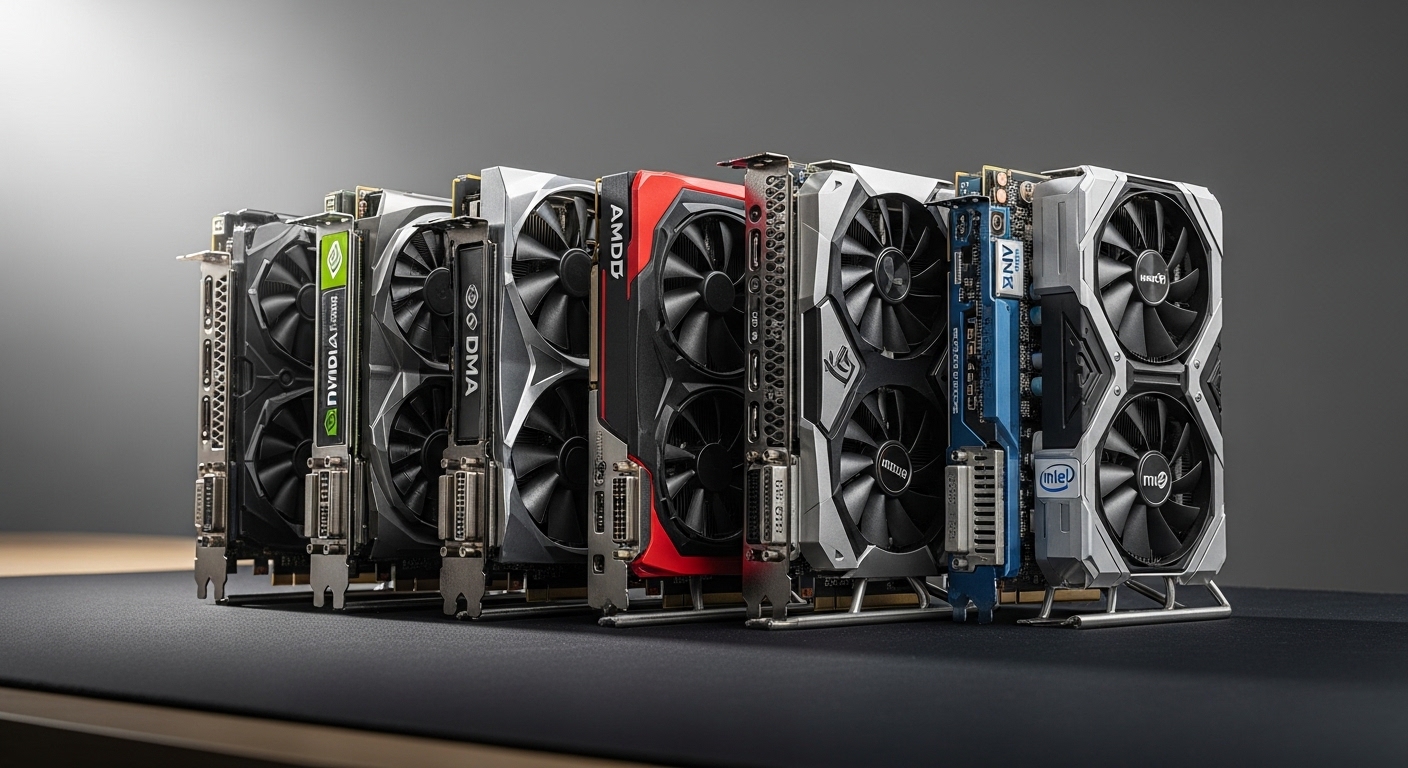


Learn New Things Best NVIDIA Graphics Settings For Gaming Maximum 1111 . Best Graphics Cards 2026 NVIDIA AMD Intel GPU Comparison Best Graphics Cards 1 . How To Use Nvidia App To Optimize Graphics Settings For Any Game . Lucky NVIDIA Graphics Card Tier List 2026 Edition Media. NVIDIA Graphics Cards A Complete Guide To Performance Rankings And Top Budget Nvidia Graphics Cards For 2026 Best Performance For Your Money


How To Switch From AMD To Nvidia Graphics Card Glubble Picture 10th . Nvidia GeForce GDC 2026 From Dynamic Multi Frame Gen To Path Traced Nvidia . Learn New Things Best NVIDIA Graphics Settings For Gaming Maximum 4 . NVIDIA CES 2026 Analysis DLSS 4 5 AI Gaming And PC Ownership Nvidia At Ces 2026 . Are There Really No New Nvidia Gaming GPUs Coming In 2026 Gamer Org A Digital Thumbnail Design With Bold Whi LhJYmGGLTkG FYciqGc3BQ Hd

4 Nvidia Graphics Card Trends That Should Worry Every Consumer In 2026 Ai Data Centers Will Inflate Flagship Gpu Prices 1768328223 . Learn New Things Best NVIDIA Graphics Settings For Gaming Maximum 1 . Laptop Graphics Card Laptop Gpu D38a4c0815 . How To Switch From AMD To Nvidia Graphics Card Glubble Picture 12th 300x215 . Nvidia Reportedly Planning To Launch A High End Gaming Graphics Card Rtx 5090 Ti


Latest Graphics Cards For Gaming In 2026 UK Budget 1440p 4K Ranked Best Latest Graphics Cards 2026 Uk 430x287 . Nvidia Isn T Announcing A New GPU At CES 2026 Insider Gaming How To Pre Order The GeForce RTX 5090 Graphics Card Guide . Nvidia Is Reportedly Skipping Consumer GPUs In 2026 Thanks AI PCWorld Nvidia Rtx 4080 . Make NVIDIA The Default Graphics Card NOW To Enjoy PERFORMANCE YouTube . GeForce NOW Revoluciona El Gaming En La Nube En El CES 2026 Roastbrief Ces 2026 Nvidia Geforce Rtx Newsfeed




Buying An Nvidia RTX Graphics Card Could Be A Headache In 2026 Nvidia Rtx 5070Ti 8 820x461 . How To Configure An Nvidia Graphics Card For Gaming Mundowin HYIvll7Cjlw . Best Graphics Cards For Gaming In 2026 Expert Graphics Card Trio RTX 5070 TI PRODUCT 900 X 600 . How To Setup And Optimize Your NVIDIA Graphics Card For Gaming YouTube . How To Set Graphics Card To Max Performance Game Voyage How To Set Graphics Card To Max Performance 089


Best Graphics Card 2026 Comparison Ranking And Buying Guide For PC Gpu Performance Scores Clean Vertical. 9 Best Graphics Cards For 1440p Gaming June 2026 Best Graphics Cards 1440p Gaming 1024x572 . GeForce RTX 5060 Ti 16G GAMING TRIO OC WHITE Cartes Graphiques MSI Nvidia Reflex . GeForce RTX 5090 Graphics Cards NVIDIA Geforce Rtx 5090 Gallery Shot 2 Ari