Still cruising through Los Santos in GTA San Andreas and want to capture those epic, nostalgic moments? Even in 2026, this classic game holds a special place for many adult gamers who juggle busy lives with their passion for digital escapism. Capturing a perfect screenshot in an older title like GTA SA can sometimes be trickier than in modern games with dedicated photo modes. This comprehensive guide cuts through the confusion, offering straightforward methods whether you are on PC or mobile. We will cover everything from simple in-game hotkeys to powerful third-party tools, ensuring your cherished Vice City memories are preserved in high quality, ready to share with friends. Discover how to troubleshoot common issues and optimize your captures for sharing on your favorite platforms, connecting with fellow enthusiasts.
How do you take a screenshot in GTA San Andreas on PC?
The easiest way is to use your keyboard's Print Screen key, then paste the image into an editor like Paint to save it. If playing on Steam, simply press F12, and Steam will capture and save the image automatically to your Steam library. For more control, third-party tools are recommended.
Where do GTA San Andreas screenshots save?
Screenshots taken with Print Screen save wherever you choose. Steam captures are found in your Steam screenshots folder (View > Screenshots). In-game or mod-based captures often save in the GTA San Andreas installation directory, usually in a 'screenshots' or 'user files' subfolder, or in your Documents folder under 'GTA San Andreas User Files'.
Can I screenshot GTA SA on my phone?
Yes, absolutely! On most Android devices, press and hold the Power button and Volume Down button simultaneously. For iOS (iPhone/iPad), press the Side button and Volume Up button at the same time (or Home + Side/Top button on older models). The screenshot will save directly to your device's Photos or Gallery app, usually in a dedicated 'Screenshots' album.
What's the easiest way to capture GTA San Andreas moments?
For PC, using Steam's F12 key is often the easiest if you own the game through Steam. Otherwise, the Print Screen key combined with a quick paste into Paint is universally simple. For mobile, using your device's native button combination (Power + Volume Down for Android, Side + Volume Up for iOS) is the most straightforward method available.
Why are my GTA San Andreas screenshots not working?
Common issues include black screens (often due to exclusive full-screen mode or old DirectX API conflicts), keybind conflicts with other software, or the game not recognizing the capture input. Try running the game in windowed mode, using a dedicated game capture tool like OBS Studio, or updating game patches/drivers to resolve these problems.
What's the best free tool to take high-quality screenshots in GTA San Andreas?
For crystal-clear captures without breaking the bank, tools like ShareX or Nvidia Ansel (if you have a compatible card and mod setup) are fantastic. They offer advanced settings like lossless formats and custom hotkeys, going beyond simple in-game methods to deliver superior visual fidelity for your classic game moments.
How can I avoid blurry or low-resolution screenshots in GTA San Andreas?
To avoid blur, ensure your game is running at your monitor's native resolution and use a dedicated screenshot tool that can capture at full quality. In-game screenshot functions often use older, lower-res methods. Experiment with various software settings, prioritizing lossless formats like PNG, for optimal results that truly showcase the game's classic visuals.
Is there a way to take a screenshot without the HUD in GTA San Andreas?
Yes, removing the HUD (Heads-Up Display) makes for cleaner cinematic shots. You can typically do this using a mod (like SilentPatch or a dedicated HUD remover mod) found in the GTA San Andreas community. Keep in mind the original unmodded game does not have an easy toggle for HUD removal, so community solutions are often required for pristine, unadulterated captures.
Why do my screenshots in GTA San Andreas appear as a black screen?
This is a common issue with older DirectX games when using certain capture software. It often occurs if the screenshot tool isn't capturing directly from the game's rendering pipeline due to exclusive full-screen modes. Try running the game in windowed mode, or use a tool specifically designed for older APIs, like OBS Studio's Game Capture mode or Fraps, which are more compatible.
Can I capture panoramic screenshots of the GTA San Andreas landscape?
Panoramic shots in GTA San Andreas usually require specialized tools or stitching multiple regular screenshots together manually in image editing software. While the game itself doesn't have a panoramic feature, advanced photo modes in newer games inspire players to get creative with capturing the vast San Andreas map. Some advanced mods or tools like Nvidia Ansel (if enabled) might offer wider field-of-view captures.
What are the best practices for organizing and sharing GTA San Andreas screenshots?
After capturing, organize your screenshots into descriptive folders on your PC or mobile device. For sharing, resize larger files if needed for faster uploads, especially to mobile-focused platforms. Platforms like Discord, Imgur, or specialized gaming communities on Reddit are great for showcasing your nostalgic moments to fellow enthusiasts, allowing for easy discussion and connection.
How do I troubleshoot if my screenshot key isn't working in GTA San Andreas?
First, check for keybind conflicts with other running applications or within the game itself. Ensure your keyboard drivers are up to date. For in-game functionality, verify game file integrity through Steam or reinstall if necessary. If all else fails, bypass in-game limitations by relying on external tools like Print Screen, the Snipping Tool, or dedicated gaming capture software such as OBS Studio or ShareX.
Hey fellow gamers! Ever find yourself cruising down Grove Street in Grand Theft Auto San Andreas, a wave of nostalgia hitting you, and you just have to capture that perfect sunset over Mount Chiliad or a ridiculous moment with CJ and Big Smoke? You are not alone. Even in 2026, GTA San Andreas remains a beloved classic. For many of us, gaming is a cherished way to unwind after a long day of work and family life, a quick escape that offers relaxation and fun. We might not have endless hours, but we value every minute, and capturing those memorable in-game experiences is part of the fun.
However, getting a decent screenshot in a game that predates modern photo modes can sometimes feel like trying to land a Dodo plane smoothly. Older games often lack the seamless integration we expect today, leading to blurry images, misplaced files, or just plain confusion. Many busy adult gamers, averaging around 36 years old and making up about 60% of the gaming demographic, find themselves wanting to preserve these moments without the hassle. This guide is your trusted co-pilot, designed to cut through the noise and provide practical, no-nonsense solutions for taking the best possible screenshots in GTA San Andreas. We will explore various methods, troubleshoot common problems, and even share tips on how to make your captures shine when sharing them with your gaming buddies online. Let's dive in and make sure your San Andreas adventures are perfectly documented.
How do I take a basic screenshot in GTA San Andreas on PC?
Capturing a simple screenshot in GTA San Andreas on PC is straightforward using a few standard methods. The most basic approach relies on your keyboard's Print Screen or PrtSc key. When you press this key, your computer takes a snapshot of your entire screen and copies it to your clipboard. You then need to paste it into an image editor like Paint, Photoshop, or even a basic image viewer, and save it as a JPG or PNG file. While effective, this method captures everything on your screen, including any desktop icons or taskbars if the game is not in full-screen exclusive mode.
Another common method for many gamers is using the dedicated screenshot feature provided by platforms like Steam. If you are playing GTA San Andreas through Steam, simply pressing F12 (the default Steam screenshot key) will capture an in-game image. Steam then usually provides an overlay or notification allowing you to view and manage your captures directly. This is often preferred because it only captures the game window itself and automatically organizes your screenshots within the Steam client, making them easier to find and share later.
For those who prefer a quick, no-fuss approach without external software, some versions of GTA San Andreas might have an internal screenshot function, often tied to a key like F8. However, this varies greatly by game version and any installed mods. These in-game captures are typically saved in the user files within the game's directory. Always check your game's specific controls or documentation if you are unsure about an in-game hotkey, but relying on Print Screen or Steam's F12 is generally more reliable for consistent results.
What are the best tools for high-quality GTA San Andreas screenshots?
While basic methods work, for truly high-quality, professional-looking screenshots in GTA San Andreas, third-party tools are your best bet. These tools offer greater control over resolution, file format, and even advanced effects. One popular choice is **ShareX**, a free and open-source program that offers a multitude of capture methods, including region selection, active window, and full screen. ShareX can save in various formats, automatically upload to image hosting sites, and even apply basic edits. It is highly customizable and perfect for gamers who want robust options without the cost.
Another excellent option, particularly for those with Nvidia graphics cards, is **Nvidia Ansel**. While GTA San Andreas does not natively support Ansel, some community-created mods or wrappers can enable it, allowing you to pause the game, freely move the camera, apply filters, and capture super-resolution or 360-degree screenshots. This offers unparalleled creative freedom, transforming your nostalgic captures into true works of art. Keep an eye on gaming forums for compatible mod implementations, as leveraging modern tech with older games is a popular trend among enthusiasts.
For a balance of ease of use and quality, **OBS Studio** is not just for streaming; it is a powerful screen capture tool. You can set up a game capture source, then use its recording or screenshot functions. This gives you high-fidelity captures and the flexibility to record short video clips too. Similarly, older but still effective tools like **Fraps** can also capture screenshots in older DirectX games, often saving them directly into a designated folder with a frame rate counter overlay if desired. The key is to choose a tool that lets you specify higher resolutions and lossless formats like PNG for the best visual fidelity.
Can I take screenshots on GTA San Andreas Mobile?
Yes, absolutely! Taking screenshots on GTA San Andreas Mobile is usually even simpler than on PC, as it leverages your device's built-in functionality. Whether you are on an Android device or an iOS iPhone or iPad, there is a universal method to capture your screen. This is fantastic news for the huge segment of gamers who prioritize mobile gaming due to its convenience and accessibility, often fitting in gaming sessions during commutes or short breaks.
For most Android phones, the common method is to simultaneously press and hold the Power button and the Volume Down button for a second or two. You will usually see a visual confirmation like a flash on the screen, hear a shutter sound, or see a small animation indicating the screenshot was taken. These images are typically saved directly to your device's Photos or Gallery app, often in a dedicated Screenshots folder.
On iOS devices (iPhones and iPads), the process is equally straightforward. For iPhones with Face ID (no Home button), you press the Side button and the Volume Up button at the same time. For older iPhones with a Home button, you press the Home button and the Side (or Top) button simultaneously. Like Android, you will see a visual cue, and the screenshot will appear as a thumbnail at the bottom left of your screen briefly before saving to your Photos app, usually under Albums > Screenshots. Given that mobile gaming now dominates a significant portion of the US gaming market, accounting for much of the average 10+ hours a week gamers spend playing, knowing these quick mobile capture methods is incredibly useful for instantly sharing your progress or funny moments with friends via messaging apps or social media.
Where are GTA San Andreas screenshots saved on my PC?
The location of your GTA San Andreas screenshots can vary depending on how you took them. This is a common point of confusion for many, especially when dealing with older game directories. Understanding these save locations is crucial for managing your captures effectively.
If you used the **Print Screen (PrtSc)** key and then pasted the image into an editor like Paint, the screenshot is saved wherever you manually chose to save it. This could be your Documents folder, Pictures folder, or a custom folder you created. It is entirely up to your saving habits.
For those playing via **Steam**, your F12 screenshots are typically saved in a specific Steam folder. You can usually access them directly through the Steam client: go to View > Screenshots, then select GTA San Andreas from the dropdown menu, and click 'Show On Disk'. Alternatively, they are often located in a path similar to: C:\[Program Files (x86)]\[Steam]\[userdata]\[YourSteamID]\[760]\[remote]\[870]\[screenshots]. The '870' is the App ID for GTA San Andreas.
If you used an **in-game screenshot function (e.g., F8 or a specific mod key)**, these images are usually saved within the game's installation directory, often in a subfolder like 'Screenshots' or 'User Files'. A typical path might look like: C:\[Program Files (x86)]\[Rockstar Games]\[Grand Theft Auto San Andreas]\[screenshots] or C:\[Users]\[YourUsername]\[Documents]\[GTA San Andreas User Files]. The exact path depends on your game version and installation method. Always check both the game's root directory and your Documents folder for these older game saves.
Finally, if you are using a **third-party tool like ShareX, OBS Studio, or Fraps**, the save location is determined by that software's settings. These programs usually have a designated output folder, which you can customize. It is always a good practice to check the settings of your chosen capture tool to confirm where your precious San Andreas moments are being stored.
How can I share my GTA San Andreas screenshots with friends or online?
Once you have captured those classic GTA San Andreas moments, sharing them is half the fun! Connecting with friends and fellow gamers, whether through social media or private chats, is a huge part of modern gaming culture. Platforms like Discord and Imgur have become central hubs for sharing gaming content, fitting perfectly with current social gaming trends where 87% of US gamers regularly engage with communities and content creators. Here's how to get your screenshots out there:
Discord: This is a favorite among gamers for good reason. Simply drag and drop your image file directly into a text channel, or use the '+' icon to upload. You can share with specific friends in a private message, in your dedicated gaming server, or in larger community servers. Discord compresses images slightly, but it is excellent for quick, casual sharing and discussion.
Imgur: A fantastic platform specifically designed for image hosting. Upload your screenshots to Imgur (you can do so anonymously or create an account), and it will provide you with a direct link to share. This is ideal for posting on forums, Reddit, or embedding into articles. Imgur typically maintains good image quality and makes sharing widely very easy.
Social Media (Facebook, X/Twitter, Instagram): If you want to share with a broader audience or your non-gaming friends, these platforms are the way to go. Just upload your image as you would any photo. Add a fun caption, maybe a relevant hashtag like #GTASanAndreas or #GamingNostalgia, and tag friends. Keep in mind that these platforms often compress images more aggressively, so consider uploading higher quality images if visual fidelity is paramount.
Reddit: For dedicated gaming communities, especially r/GTA or r/SanAndreas, Reddit is a goldmine. You can upload images directly when creating a post. It is a great place to showcase your captures, get feedback, and engage in discussions with other fans who appreciate the game as much as you do.
Direct Messaging: For personal sharing with close friends, apps like WhatsApp, Telegram, or even email are perfectly fine. Just attach the image file to your message. Remember, balancing gaming with life means sometimes a quick text with a screenshot is all you need to brighten a friend's day!
Before sharing, consider resizing very large files if bandwidth is an issue, but generally, most platforms handle modern image sizes well. The goal is to connect and share those unique moments that make GTA San Andreas unforgettable.
What are common issues when taking screenshots in older PC games like GTA SA?
Older PC games like GTA San Andreas, being built on older DirectX versions, often present unique challenges when it comes to taking screenshots. Modern operating systems and capture software are primarily designed for newer APIs, leading to several common pain points for busy gamers trying to capture their nostalgic fun.
Black Screen Syndrome: This is arguably the most frequent issue. You press your screenshot key, but when you paste or view the image, it is entirely black or shows your desktop instead of the game. This happens because many capture tools struggle to hook into the game's rendering pipeline directly. The game might be running in an exclusive full-screen mode that prevents external tools from accessing the raw framebuffer.
Low Quality or Blurry Images: In-game screenshot functions in older titles often capture at a lower resolution or use lossy compression, resulting in grainy or pixelated images that do not do justice to the game's visuals (even if they are nostalgic pixels!). This is especially noticeable on modern high-resolution monitors.
Incorrect Aspect Ratios: When playing older games, particularly if you are using mods or forcing resolutions, screenshots might come out stretched or squashed, not reflecting the intended visual display. This can be frustrating for anyone trying to capture the game's aesthetic accurately.
File Location Confusion: As mentioned earlier, where screenshots save can be a mystery. Unlike modern games that often have a centralized 'Pictures' folder, older titles might tuck them away in obscure subdirectories within the game's installation or user data folders, requiring a treasure hunt to find them.
Keybind Conflicts: Sometimes, a screenshot key (like F12 for Steam or Print Screen) might be overridden by another program running in the background, or even conflict with the game's own internal keybinds. This leads to the frustrating experience of pressing the key with no result.
To overcome these, leveraging modern third-party tools like OBS Studio in 'Game Capture' mode, or even using a windowed mode for simpler 'Print Screen' captures, can often bypass these older game limitations. Community patches and mods, such as SilentPatch for GTA San Andreas, often include fixes that improve compatibility with modern systems and screenshot utilities, enhancing the overall capture experience.
Tips for capturing the perfect GTA San Andreas moment?
Capturing the perfect screenshot in GTA San Andreas goes beyond just knowing the buttons; it involves a bit of timing and an eye for composition. As gamers who balance life and pixels, we want our captured moments to truly stand out. Here are some pro tips:
Timing is Everything: The dynamic world of San Andreas means fleeting moments. Whether it's a dramatic explosion, a perfect stunt jump, or a character making a hilarious face, be ready to hit that screenshot key instantly. Consider using a tool with a slight delay option if you need a moment to set up the shot.
Composition Matters: Think about what you want in focus. Use the 'rule of thirds' if you can, placing important elements off-center for a more visually appealing image. Look for interesting backgrounds, unique character interactions, or dramatic lighting. San Andreas has incredible sunrises and sunsets that are perfect for scenic shots.
Clear the HUD: The Heads-Up Display (HUD) can often clutter a cinematic shot. While GTA SA does not have an official 'photo mode' to remove the HUD, many community mods exist that allow you to toggle it off temporarily. Searching for 'GTA SA HUD remover mod' can yield great results, making your screenshots feel more like movie stills.
Resolution and Settings: Play the game at the highest resolution your monitor supports, and ensure your graphics settings are maxed out if your system can handle it. Higher resolution input means higher quality screenshots. Modern upscaling tools can also sometimes enhance older game visuals for better captures.
Experiment with Angles: Drive around, run around, or even fly in a plane to find unique perspectives. A shot from a low angle can make CJ look more heroic, while a high angle can show off the expansive San Andreas map. Don't be afraid to try multiple shots from different angles for the same moment.
Mods for Visual Enhancement: While staying current with trends is important, appreciating classics is equally vital. Many community-made graphics mods for GTA San Andreas can drastically improve textures, lighting, and environmental effects. Installing a good visual mod can elevate your screenshots from nostalgic to stunning. Just remember to back up your game files first!
By combining these techniques with your preferred screenshot method, you will be able to capture truly memorable and high-quality moments from your San Andreas adventures.
How do current gaming trends influence sharing older game screenshots?
Even though GTA San Andreas is a classic, current gaming trends heavily influence how and why we share screenshots from it. Today's gaming landscape, dominated by social interaction, content creation, and a blend of nostalgia with modern aesthetics, means our old game captures find new life. Over the past year, social gaming has exploded, with platforms like Discord, Twitch, and YouTube becoming central to how gamers connect and share their experiences. This communal aspect, where 87% of US gamers regularly engage with online communities, means sharing an old GTA SA screenshot isn't just a personal memory; it's a conversation starter.
One major trend is **nostalgia marketing and retro gaming's resurgence**. Publishers are remastering old titles, and indie developers are creating retro-styled games, proving there's a huge appetite for classic experiences. Sharing a well-composed screenshot from GTA SA taps directly into this, evoking shared memories and inviting others to reminisce. It's not uncommon to see a 'Throwback Thursday' post featuring an iconic moment from San Andreas that garners significant engagement.
Another factor is the **creator and streamer influence**. Even if you are not a streamer, the culture of documenting and sharing gameplay moments has become universal. People are constantly creating clips and highlights, and a well-timed screenshot is a static version of that. It allows quick, digestible content sharing that fits busy schedules. Seeing a popular streamer revisit GTA SA can inspire their audience to do the same and share their own captures.
Furthermore, the **pervasiveness of mobile gaming and cross-play culture** means that even PC gamers are often sharing content directly from their phones or optimizing it for mobile viewing. A screenshot captured on PC might be quickly transferred to a phone to be shared on Instagram Stories or WhatsApp groups, leveraging the convenience of mobile platforms. This month, we've seen a continued rise in mobile's share of overall gaming time, making mobile-friendly content crucial.
Lastly, the desire for **authenticity and unique content** drives many gamers. In a sea of polished, hyper-realistic new game releases, a raw, nostalgic screenshot from GTA San Andreas stands out. It's a reminder of where gaming has come from, and often sparks conversations about game design, open-world evolution, and personal gaming histories. Sharing these older game captures is a way to connect with a shared past while participating in the present online gaming community.
Are there any in-game camera features in GTA San Andreas for photos?
Yes, GTA San Andreas actually features an in-game camera that allows for a more immersive photo-taking experience than just a basic screenshot. While it is not a full-fledged 'photo mode' with free camera movement and filters like modern titles, it certainly adds a unique layer to capturing moments within the game world. This feature is particularly cool for those who appreciate the original game's mechanics and want to capture something with an 'in-world' feel.
You can acquire a camera item within the game, typically found in specific locations or unlocked through missions. Once you have the camera, you can equip it from your weapon wheel. When you use the camera, CJ holds it up, and you get a first-person view through its lens. You can then aim and 'snap' a picture. These pictures are often lower resolution than what a dedicated screenshot tool can provide, but they are saved as actual in-game collectibles or memories within your save file.
The in-game camera is especially used during certain missions, like the 'Photo Opportunity' mission where you need to photograph specific targets. Outside of missions, it is a fun way to take 'tourist' photos of the San Andreas landscape, iconic landmarks, or funny character interactions from CJ's perspective. The limitations, such as fixed camera position and lower resolution, mean it is not ideal for high-fidelity sharing, but it is excellent for role-playing or achieving specific mission objectives. For truly shareable, high-res captures, combining the in-game camera's perspective with a third-party screenshot tool is often the best approach.
What third-party software offers the best control for "screenshot gta san andreas" quality?
For gamers who prioritize absolute control over quality when taking a screenshot in GTA San Andreas, certain third-party software stands head and shoulders above simple in-game or system-level options. These tools cater to the desire for crisp, high-resolution captures that showcase the game's enduring charm, even on modern displays. The average gamer who balances responsibilities values efficiency and reliable performance, and these tools deliver just that.
One of the top contenders is **ShareX**. It is completely free, open-source, and incredibly powerful. ShareX offers an extensive array of capture options, including full screen, active window, region selection, and even scrolling capture. Crucially for quality, it allows you to choose lossless formats like PNG, which preserve every pixel without compression artifacts. It also supports custom hotkeys, image effects, and automatic uploads to various online services, making the workflow incredibly smooth from capture to sharing.
For those with **Nvidia graphics cards**, trying to enable **Nvidia Ansel** through community mods or wrappers can provide an unparalleled level of control. Ansel, while not native to GTA SA, offers a 'super resolution' capture mode that renders the scene at an incredibly high resolution and then scales it down, resulting in images with phenomenal detail and anti-aliasing. It also allows for free camera movement, filters, and 360-degree captures, turning a simple screenshot into a virtual photography session. This option requires a bit more setup but yields the most artistic results.
**OBS Studio** is another excellent choice, not just for streaming, but for high-quality game capture. By setting up a 'Game Capture' source for GTA San Andreas, you can configure OBS to record screenshots in a specific format (e.g., PNG) and at the game's native resolution. It is reliable, handles older DirectX games well, and gives you fine-tuned control over the output. Plus, if you ever decide to dip into video content, you are already set up.
Finally, for a simpler, yet effective paid option, **Fraps** remains a classic. While not as feature-rich as ShareX or OBS, it excels at capturing screenshots in older DirectX/OpenGL games with minimal performance impact. It saves directly to a designated folder and is known for its reliability in games from San Andreas's era. Ultimately, the 'best' tool depends on your specific needs and technical comfort, but these options provide superior quality and control for your GTA San Andreas captures.
Capturing your favorite moments in GTA San Andreas is more than just hitting a key; it is about preserving a piece of gaming history and your personal journey with a classic. Whether you are using a simple Print Screen, Steam's built-in feature, your phone's native capture, or a robust third-party tool, the goal is to save those memories and share the joy. In a world where 87% of US gamers regularly play and connect online, sharing your nostalgic snaps helps build community and keeps the spirit of San Andreas alive. What is your favorite San Andreas memory you have captured, or what is your biggest gaming challenge when trying to capture older games? Comment below!
How do I change the screenshot key in GTA SA?
Changing the screenshot key in GTA San Andreas itself is not directly possible through in-game settings for the basic function. If you are using Steam, you can change the F12 keybind in Steam's settings (Steam > Settings > In-Game). For third-party tools like ShareX or OBS, you can fully customize the hotkeys within their respective settings menus, offering complete control over your preferred capture method.
Why are my screenshots black in GTA SA?
Black screenshots in GTA San Andreas typically occur because the game runs in an exclusive full-screen mode that prevents some external capture tools from accessing the game's visual buffer. To fix this, try running GTA SA in windowed mode, use a capture tool specifically designed for older DirectX games (like Fraps), or use OBS Studio with 'Game Capture' set to specific window mode. Running the game as administrator can also sometimes help.
Can I take screenshots in widescreen resolutions?
Yes, you can take screenshots in widescreen resolutions if your game is running in widescreen. Modern versions of GTA San Andreas, especially those with community patches or mods like Widescreen Fixes, support widescreen. Ensure your display resolution is set to a widescreen aspect ratio in the game's display settings, and your screenshot tool will capture whatever is displayed on your screen, including the wider view.
Is there a built-in photo mode?
GTA San Andreas does not have a dedicated 'photo mode' with free camera movement and filters like newer games. However, it does feature an in-game camera item that CJ can use to take pictures from a first-person perspective, often used for missions. For modern photo mode capabilities, you would typically need to rely on advanced third-party tools like Nvidia Ansel (with mods) or free camera mods.
What's the best file format for GTA SA screenshots?
For the best quality GTA San Andreas screenshots, **PNG** is generally the best file format. PNG is a lossless format, meaning it preserves all image data without compression artifacts, resulting in crisp, clear images. While JPG offers smaller file sizes, it uses lossy compression, which can degrade image quality, especially noticeable in older, pixel-art heavy games. If storage is an issue, a high-quality JPG setting is acceptable, but PNG is king for fidelity.
Can I use Steam's screenshot feature for GTA San Andreas?
Yes, if you own and play GTA San Andreas through Steam, you can absolutely use Steam's built-in screenshot feature. Simply press the F12 key (or your customized Steam hotkey) while in-game. Steam will automatically capture the game window and save it to your Steam screenshots library, making it easy to view, upload, and share with your Steam friends or public profiles. This is one of the most convenient methods for Steam users.
How do I make my GTA San Andreas screenshots look better on modern displays?
To make your GTA San Andreas screenshots look better on modern displays, ensure the game is running at your monitor's native resolution, ideally with an appropriate widescreen fix mod. Max out in-game graphics settings. Use a high-quality capture tool like ShareX saving to PNG. Consider community graphics mods that enhance textures, lighting, and reflections, which will directly impact the visual fidelity of your captures on contemporary screens. Post-processing with basic image editing can also sharpen details.
Simple steps for PC and mobile screenshots, troubleshooting common issues like black screens, using third-party tools for high-quality captures, finding saved screenshots, and tips for sharing nostalgic moments effectively.
35


Grand Theft Auto San Andreas Screenshot 2026 01 17 00 22 49 14 Grand Theft Auto San Andreas Screenshot 2026.01.17 . Grand Theft Auto San Andreas Screenshot 2026 01 18 22 40 30 99 Grand Theft Auto San Andreas Screenshot 2026.01.18 . Grand Theft Auto San Andreas Screenshot 2026 01 17 21 40 35 48 Grand Theft Auto San Andreas Screenshot 2026.01.17 . Grand Theft Auto San Andreas Screenshot 2026 01 14 02 10 25 50 Grand Theft Auto San Andreas Screenshot 2026.01.14 . Grand Theft Auto San Andreas Screenshot 2026 01 25 14 31 48 87 Grand Theft Auto San Andreas Screenshot 2026.01.25
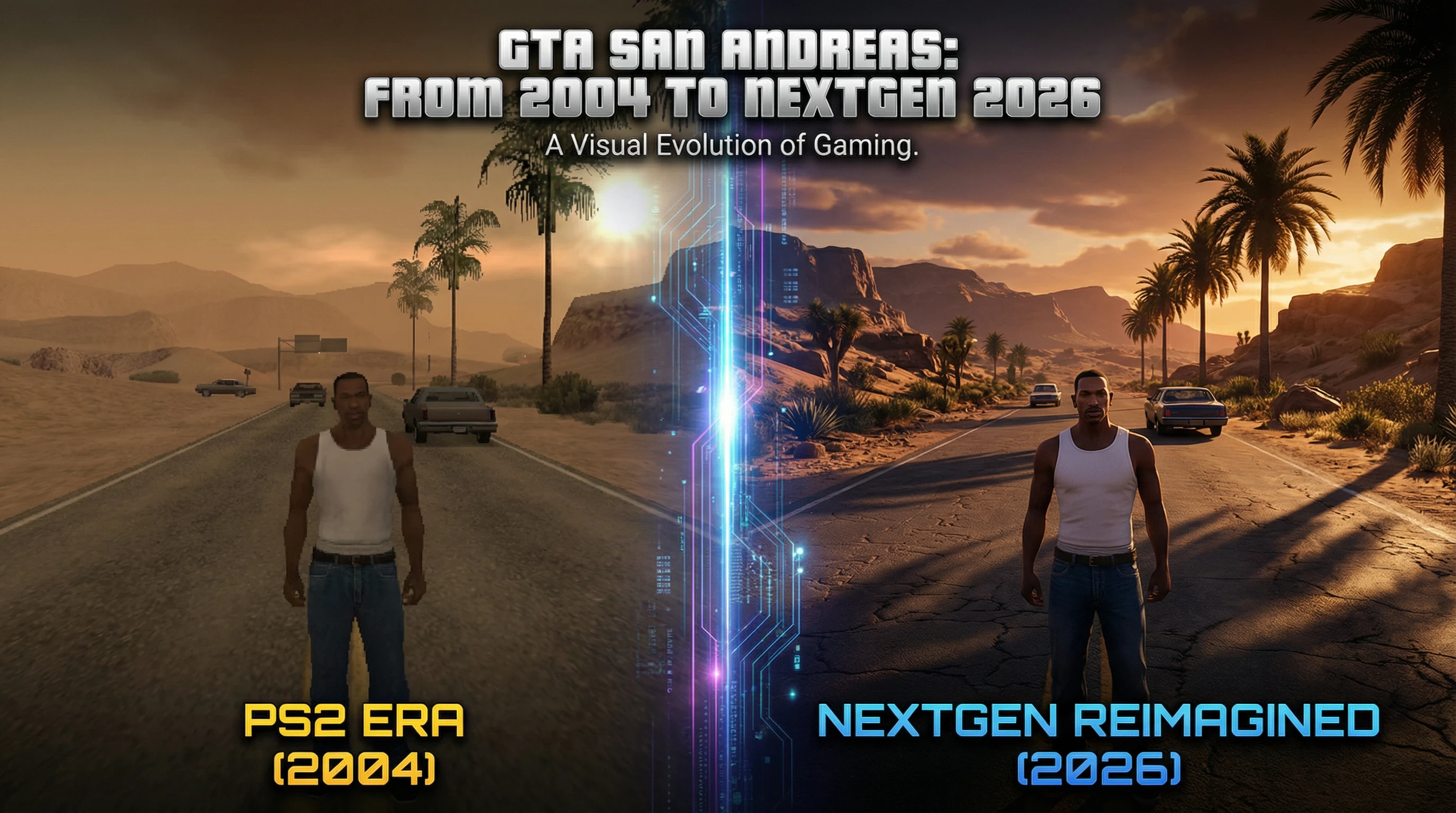


GTA San Andreas 2026 22bc1e7c17 Attachments Webp.webp. Grand Theft Auto San Andreas Screenshot 2026 03 07 22 12 52 21 Grand Theft Auto San Andreas Screenshot 2026.03.07 . Grand Theft Auto San Andreas Screenshot 2026 01 18 21 40 59 26 Grand Theft Auto San Andreas Screenshot 2026.01.18 . Grand Theft Auto San Andreas Screenshot 2026 01 22 20 13 41 80 Grand Theft Auto San Andreas Screenshot 2026.01.22 . Grand Theft Auto San Andreas Screenshot 2026 01 29 00 10 50 55 Grand Theft Auto San Andreas Screenshot 2026.01.29




Grand Theft Auto San Andreas Screenshot 2026 01 03 22 39 34 66 Grand Theft Auto San Andreas Screenshot 2026.01.03 . Grand Theft Auto San Andreas Screenshot 2026 01 07 22 08 59 95 Grand Theft Auto San Andreas Screenshot 2026.01.07 . Grand Theft Auto San Andreas Screenshot 2026 01 06 15 45 59 25 Grand Theft Auto San Andreas Screenshot 2026.01.06 . Grand Theft Auto San Andreas Screenshot 2026 01 20 21 34 49 84 Grand Theft Auto San Andreas Screenshot 2026.01.20 . Grand Theft Auto San Andreas Screenshot 2026 02 04 00 05 27 58 Grand Theft Auto San Andreas Screenshot 2026.02.04


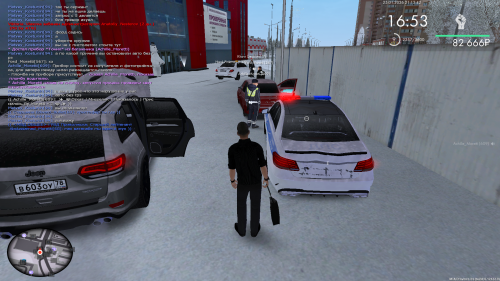

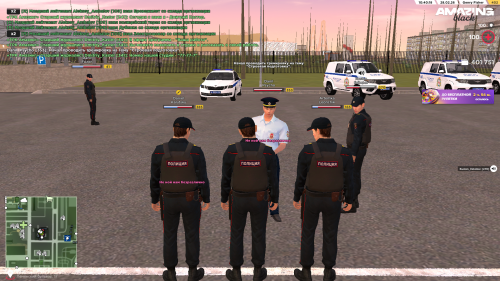
Grand Theft Auto San Andreas Screenshot 2026 01 12 20 50 43 18 Grand Theft Auto San Andreas Screenshot 2026.01.12 . Grand Theft Auto San Andreas Screenshot 2026 02 04 12 09 23 26 Grand Theft Auto San Andreas Screenshot 2026.02.04 . Grand Theft Auto San Andreas Screenshot 2026 01 25 21 13 40 70 Grand Theft Auto San Andreas Screenshot 2026.01.25 . Grand Theft Auto San Andreas Screenshot 2026 01 17 14 04 30 04 Grand Theft Auto San Andreas Screenshot 2026.01.17 . Grand Theft Auto San Andreas Screenshot 2026 02 28 15 40 18 09 Grand Theft Auto San Andreas Screenshot 2026.02.28

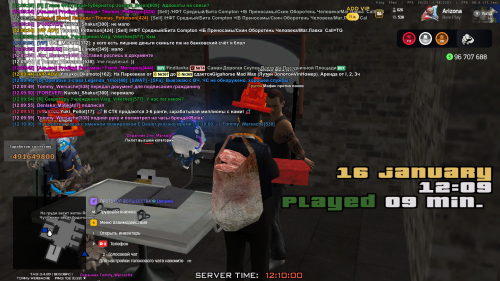

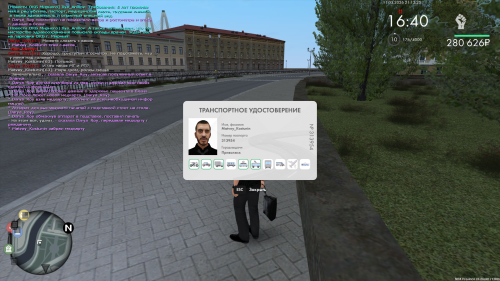

Grand Theft Auto San Andreas Screenshot 2026 01 21 15 12 17 51 Grand Theft Auto San Andreas Screenshot 2026.01.21 . Grand Theft Auto San Andreas Screenshot 2026 01 16 12 10 01 03 Grand Theft Auto San Andreas Screenshot 2026.01.16 . Grand Theft Auto San Andreas Screenshot 2026 01 14 12 37 32 57 Grand Theft Auto San Andreas Screenshot 2026.01.14 . Grand Theft Auto San Andreas Screenshot 2026 03 11 21 13 25 01 Grand Theft Auto San Andreas Screenshot 2026.03.11 . Grand Theft Auto San Andreas Screenshot 2026 02 17 21 59 31 69 Grand Theft Auto San Andreas Screenshot 2026.02.17 21.59.31.69
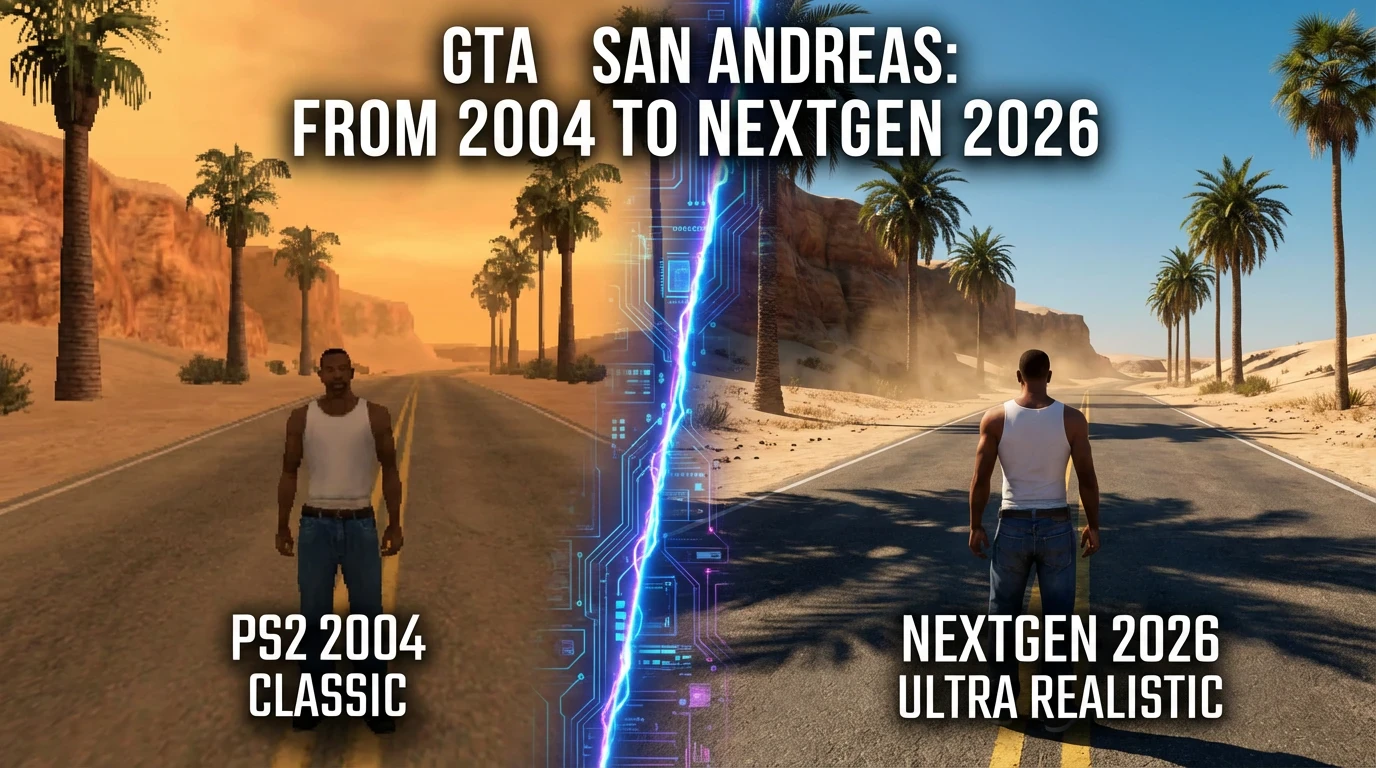
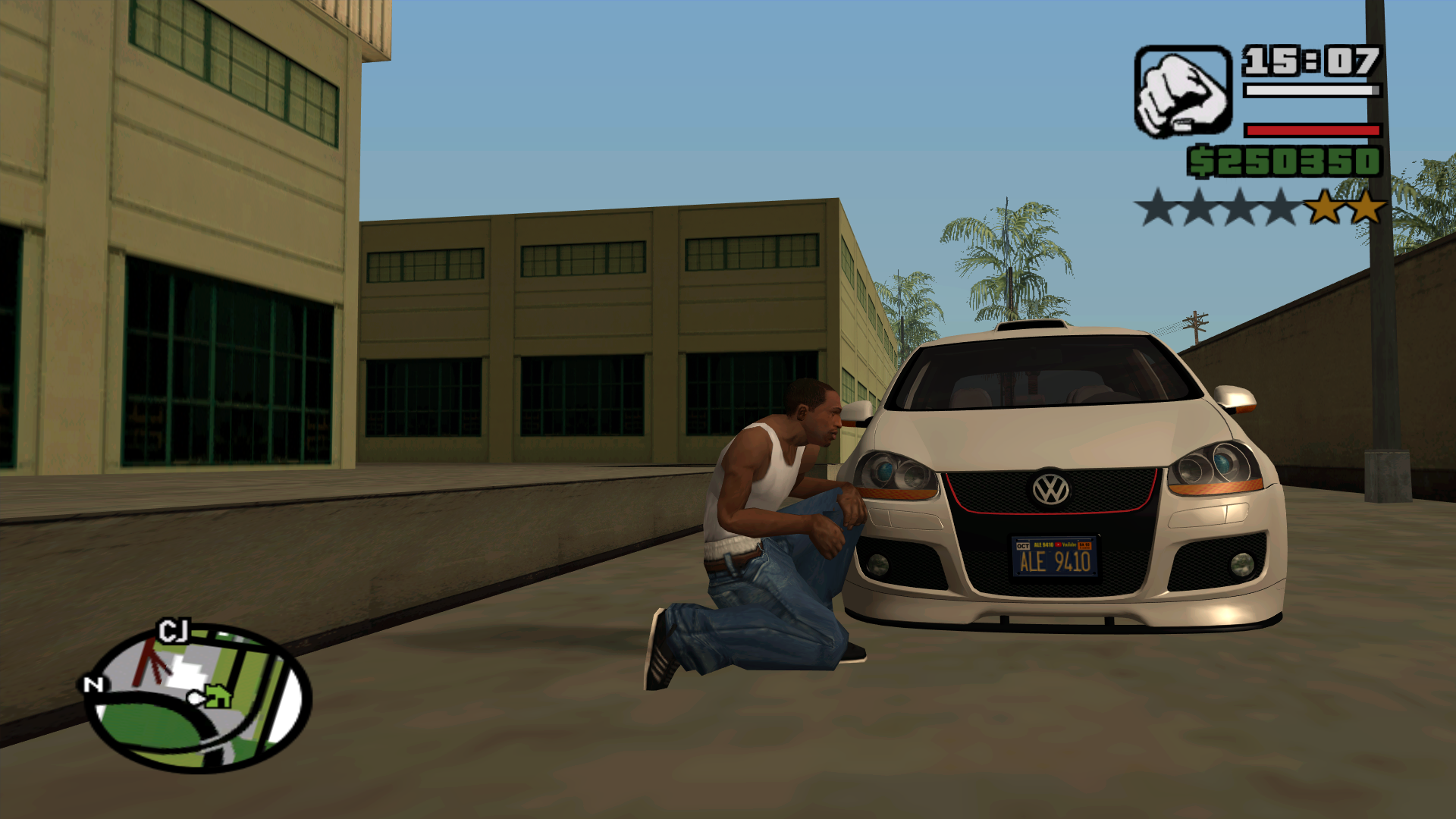
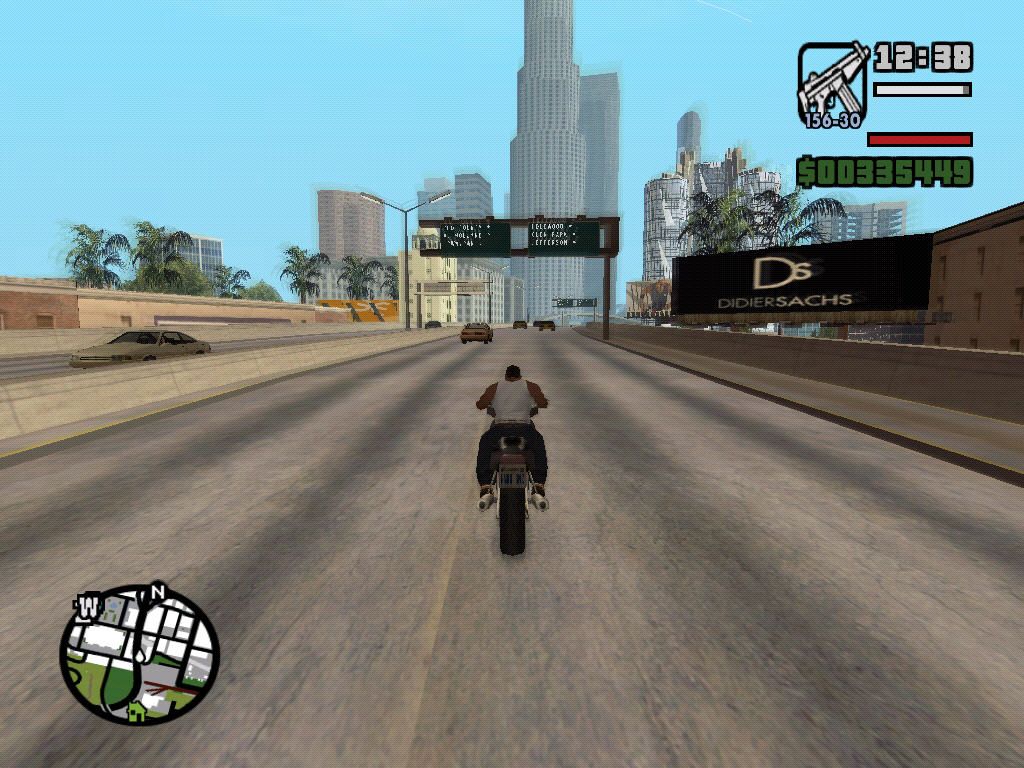
GTA San Andreas 2026 61e1df0c39 Attachments Webp.webp. Grand Theft Auto San Andreas Screenshot 2026 01 15 20 53 12 17 Grand Theft Auto San Andreas Screenshot 2026.01.15 . Grand Theft Auto San Andreas Screenshot 2026 03 04 21 55 14 55 Grand Theft Auto San Andreas Screenshot 2026.03.04 . How To Full Screen Gta San Andreas In Pc At Bruce Karp Blog 346634 . Screenshot Of Grand Theft Auto San Andreas Windows 2004 MobyGames 10227157 Grand Theft Auto San Andreas Windows Streets Of Los Santos


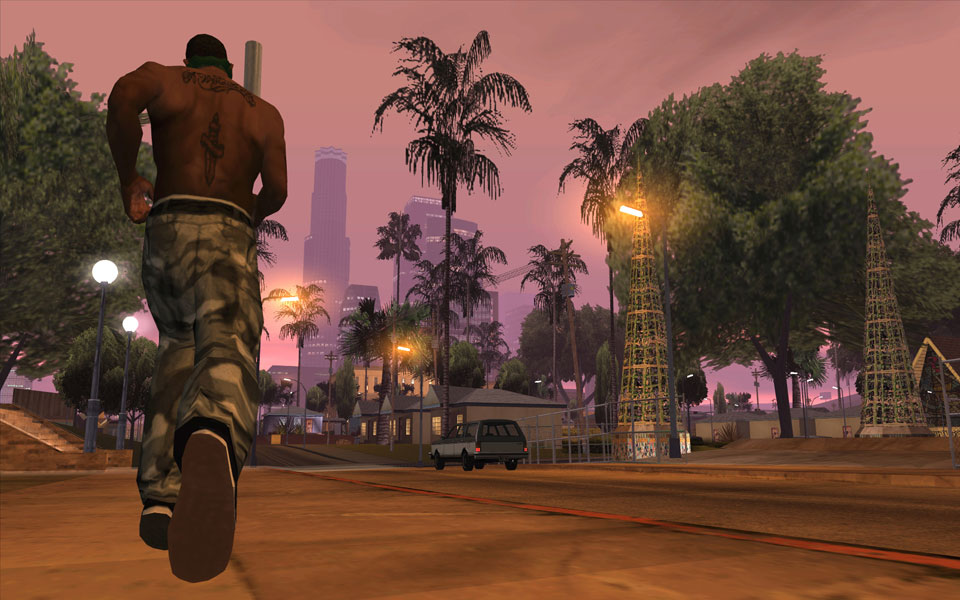
Grand Theft Auto San Andreas Screenshots Hooked Gamers Screenshot Pc Grand Theft Auto San Andreas016 . Grand Theft Auto San Andreas Screenshot 2026 02 10 22 13 33 14 Grand Theft Auto San Andreas Screenshot 2026.02.10 . Grand Theft Auto San Andreas Screenshot 2026 02 09 20 26 16 43 Grand Theft Auto San Andreas Screenshot 2026.02.09 . PC Screenshots GTA SanAndreas Com Screen 287 . Grand Theft Auto San Andreas Screenshot 2026 01 08 00 14 38 22 Grand Theft Auto San Andreas Screenshot 2026.01.08