Discovering the exact location of your Roblox files can be a game changer for many dedicated players and parents alike. Whether you are troubleshooting persistent performance issues looking to clear up some storage space or even venturing into modifying game assets knowing where Roblox stores its critical data is essential. This comprehensive guide is tailored for the average gamer around 36 years old who juggles work and family but still loves diving into virtual worlds like Roblox for relaxation and social engagement. We understand that your gaming time is precious so we aim to provide quick actionable solutions to common frustrations. With over 87 percent of US gamers regularly spending an average of 10 plus hours a week across various platforms especially mobile and PC the need for efficient game management is higher than ever. Lets cut through the clutter and get you to those Roblox files swiftly so you can get back to what matters most playing and connecting with friends.
Where is Roblox files located on Windows PC?
For most Windows users the main Roblox game files are found in C:Users[Your Username]AppDataLocalRobloxVersions. Inside the Versions folder you will see multiple subfolders each representing a specific client version. To access this easily type %localappdata% in the Windows Run dialog then navigate to the Roblox folder and then Versions.
How do I find Roblox files on a Mac?
On a Mac Roblox files are typically located within your user's hidden Library folder. To access this open Finder click Go in the menu bar hold the Option Alt key to reveal Library then navigate to Application Support Roblox Versions. This path contains your Roblox client installation files and assets.
Why would I need to find my Roblox installation folder?
You might need to find your Roblox installation folder for several practical reasons. These include troubleshooting game crashes or performance issues clearing accumulated cache and log files for optimization accessing custom content or modifications managing screenshots and videos or ensuring a complete and clean uninstallation or reinstallation of the game.
What are the key folders within the Roblox directory?
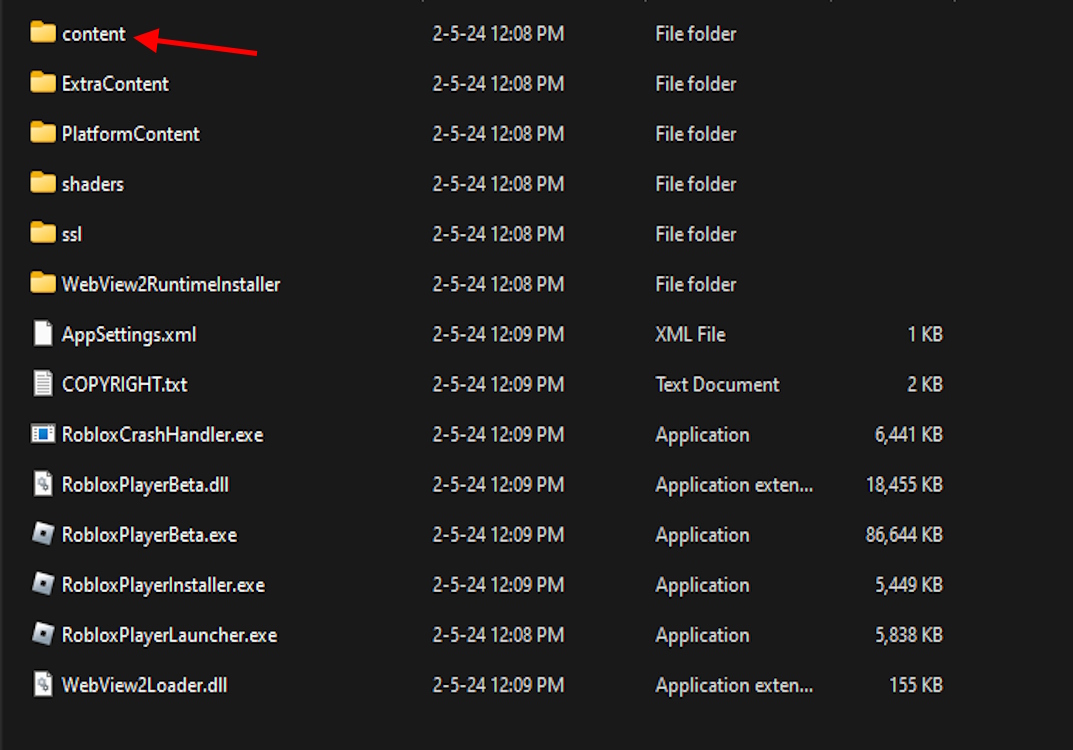
Within the Roblox directory the key folders include content which holds game assets like textures and sounds logs containing diagnostic information for troubleshooting and various client version folders. Understanding these helps in managing assets debugging issues and optimizing game performance for a smoother experience.
Can I move Roblox game files to another drive?
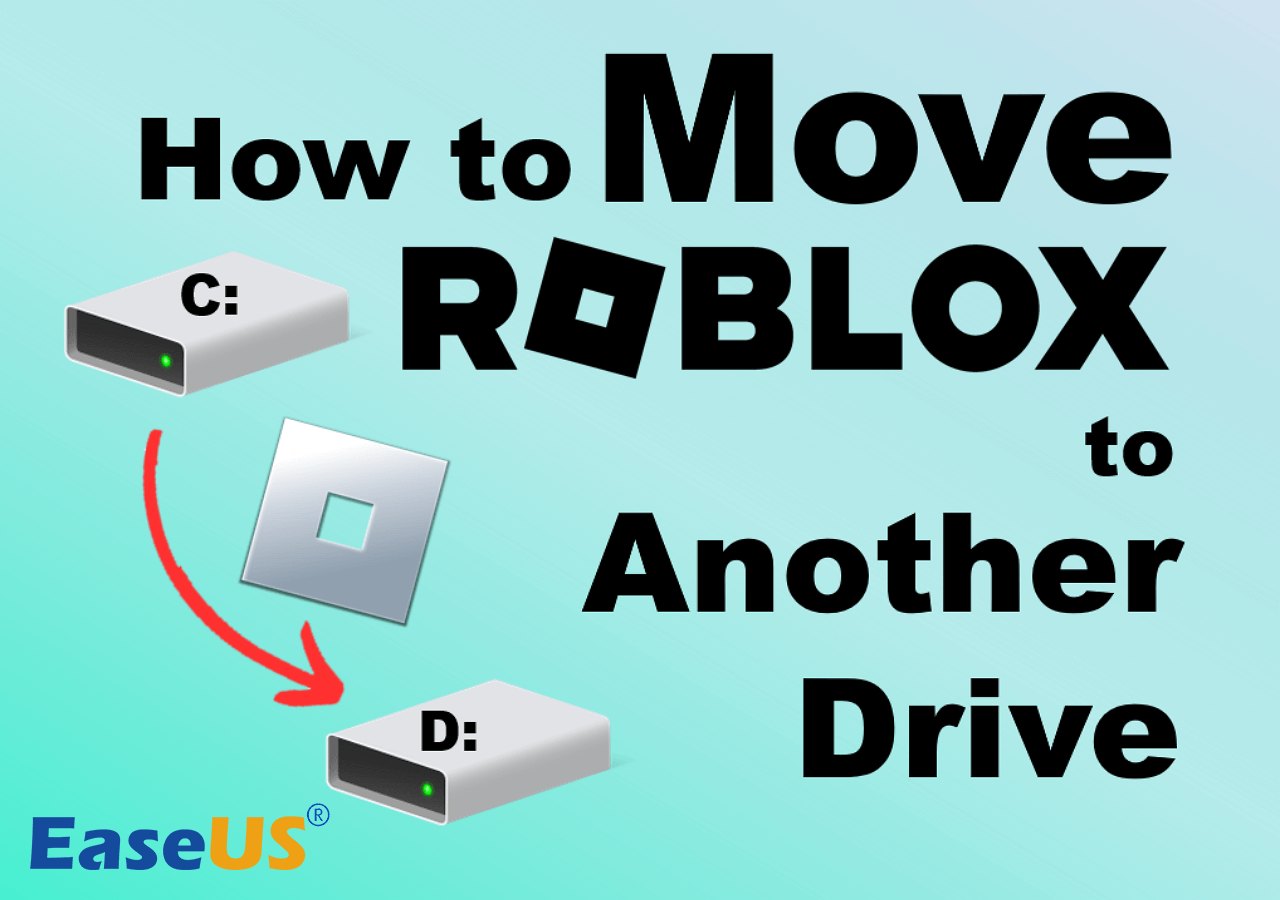
Moving standard web-installed Roblox files to another drive by simply copying the folder is generally not recommended as it can break game functionality. For the Microsoft Store version you can move it via Windows Settings Apps Apps & features. For the web version a clean uninstall and reinstall or advanced symbolic linking might be needed but is more complex.
How do I clear Roblox cache files?
To clear Roblox cache files close the game then press Windows key R type %temp% and delete Roblox related items. Additionally type %localappdata% navigate to Roblox Logs and delete the files within. On Mac go to Finder Go Library Caches com.roblox.RobloxPlayer and delete contents then clear logs in Application Support Roblox Logs.
Where are Roblox screenshots and videos saved?
Roblox screenshots taken in-game are usually saved in your computer's default PicturesRoblox folder on Windows (C:Users[Your Username]PicturesRoblox) and Mac (~/Pictures/Roblox). Any in-game videos would typically be saved in your VideosRoblox or MoviesRoblox folder respectively. Third-party recording software will have its own save locations.
For many of us who balance a busy life with a passion for gaming finding a moment to dive into our favorite titles like Roblox is a cherished escape. But nothing sours that relaxation faster than technical glitches slow performance or just plain confusion when trying to manage your games. You're not alone. With a significant portion of US gamers, many around our average age of 36, regularly spending over 10 hours a week across various platforms, often balancing gaming with work and family, efficiency is key. We want to maximize our fun, build skills, connect with friends, and optimize our experience without getting bogged down in technical headaches. One common question that comes up whether you're trying to fix a persistent bug, free up storage, or even explore some community-made content, is simply: where is Roblox files located?
Understanding where Roblox stores its critical files is more than just trivia; it's a fundamental step towards becoming a savvier gamer. It empowers you to troubleshoot issues independently, maintain peak performance, and even unlock customization options that can enhance your gameplay. Forget the hype and the corporate jargon; this guide is designed for real gamers like you—those who value practical solutions and want to stay current without spending hours sifting through forums. Let's dig in and demystify the Roblox file system together, ensuring your precious gaming time is spent playing, not endlessly searching.
Where is Roblox files located on Windows PC?
For most Windows PC users, the main Roblox game files are typically found within a hidden AppData folder. This location is common for many applications and ensures user-specific data is kept separate from system files. Knowing this path is crucial for any form of troubleshooting or advanced management.
Here are the common paths:
- For the standard web-browser installed Roblox client: C:Users[Your Username]AppDataLocalRobloxVersions
- Inside the 'Versions' folder, you'll find several subfolders named with long strings of numbers and letters (e.g., version-c7f7e8g9h0i1j2k3l4m5n6o7p8q9r0s1). The most recently updated and active game client will be in the folder with the newest timestamp or often in the folder that has the 'RobloxPlayerBeta.exe' file.
- For Roblox installed via the Microsoft Store: C:Program FilesWindowsApps (This folder is usually highly restricted and harder to access directly without elevated permissions. It's generally not recommended to manually interact with files here.)
To navigate to the standard Roblox files on Windows:
- Press the Windows key + R to open the Run dialog.
- Type %localappdata% and press Enter.
- This will open the AppDataLocal folder.
- From there, locate the 'Roblox' folder.
- Inside 'Roblox', open the 'Versions' folder.
- You'll then see the various game client versions.
This is where you'll find the executable files, game assets, and other core components that make Roblox run. Accessing these files can be your first step in resolving common glitches or enhancing your experience.
How do I find Roblox files on a Mac?
Mac users also need to locate their Roblox installation for various reasons, from performance tweaks to content management. The file structure on macOS is slightly different, but the principle remains the same: the game files are stored within the user's Library folder, which is typically hidden by default.
Here's how to access them:
- Open Finder.
- Click 'Go' in the menu bar at the top of your screen.
- Hold down the Option (Alt) key. This will reveal the 'Library' option in the dropdown menu.
- Click 'Library'.
- Navigate to Application Support > Roblox > Versions.
- Similar to Windows, within the 'Versions' folder, you'll find subfolders containing the different Roblox client versions.
This path leads you directly to the executable files and game assets specific to your Roblox installation on your Mac. Knowing this path is valuable for tasks like troubleshooting corrupted game files or preparing for custom content installations.
Why would I need to find my Roblox installation folder?
For the busy gamer, understanding the 'why' behind finding these files is just as important as the 'how'. It's not about being a tech wizard; it's about practical problem-solving to protect your precious gaming time. Many US gamers, especially those juggling responsibilities, value solutions that save time and reduce frustration.
Here are the primary reasons:
- Troubleshooting Game Issues: If Roblox is crashing, freezing, or experiencing graphical glitches, sometimes clearing specific temporary files or checking for corrupted game assets requires direct access to the installation folder. This is a common first step before reinstalling the entire game.
- Performance Optimization: Over time, Roblox can accumulate cache and log files that might slow down your game. Regularly clearing these files from their respective locations can significantly improve loading times and in-game performance, which is crucial for those brief gaming sessions.
- Custom Content and Modifications: While Roblox doesn't officially support extensive modding like some other games, community-driven tools or custom textures sometimes require placing files in specific subdirectories of the Roblox folder.
- Capturing Screenshots and Videos: Though Roblox has an in-built screenshot feature, understanding where these media files are saved allows for easier management, editing, and sharing with your online friends.
- Uninstalling or Reinstalling: Ensuring a clean uninstall or preparing for a fresh installation often involves verifying that all associated game files are removed from the system.
Knowing where your Roblox files are located empowers you to take control of your gaming experience, ensuring smoother, more enjoyable sessions when you finally get a moment to relax and play.
What are the key folders within the Roblox directory?
Once you navigate to the main Roblox 'Versions' folder, you'll encounter several important subdirectories. Each serves a specific purpose, and understanding them can help you pinpoint exactly what you're looking for, whether it's a log file or a game asset. This knowledge helps busy gamers quickly resolve issues without guesswork.
Here are the key folders you'll typically find:
- content: This is a crucial folder containing the bulk of Roblox's game assets, including textures, sounds, meshes, and more. If you're looking for where the actual in-game visual and audio data resides, this is it.
- logs: As the name suggests, this folder stores log files generated by the Roblox client. These text files can be incredibly valuable for diagnosing crashes, connection issues, or other technical problems. When support asks for logs, this is where you'll find them.
- shaders: This folder contains shader files that dictate how graphics are rendered in the game. Rarely messed with, but good to know its purpose.
- BuiltInPlugins: These are plugins that come pre-installed with Roblox Studio.
- RobloxPlayerBeta.exe (or .app on Mac): While not a folder, this is the main executable file that launches the Roblox game client.
Understanding these directories helps you efficiently navigate the Roblox ecosystem, allowing for more precise troubleshooting and management. For instance, if your game is lagging, checking the 'logs' folder might reveal network issues, or if textures aren't loading, verifying the 'content' folder could be a step.
Can I move Roblox game files to another drive?
Moving game files to another drive is a common strategy for gamers looking to free up space on their primary SSD or to consolidate games on a dedicated gaming drive. For Roblox, it's a bit more nuanced than simply copying and pasting due to how the game handles updates and installations, especially for the standard web-browser client.
For the standard web-browser installed Roblox:
Directly moving the 'Roblox' folder from 'AppDataLocal' is generally NOT recommended. Roblox is designed to install and update itself within that specific directory. If you try to move it manually, the game client or the website might not be able to locate it, leading to errors or triggering a fresh installation.
The recommended approach for moving Roblox (or reinstalling to a different location) is as follows:
- **Uninstall Roblox:** Completely uninstall Roblox through Windows 'Add or remove programs' or by dragging the app to Trash on Mac.
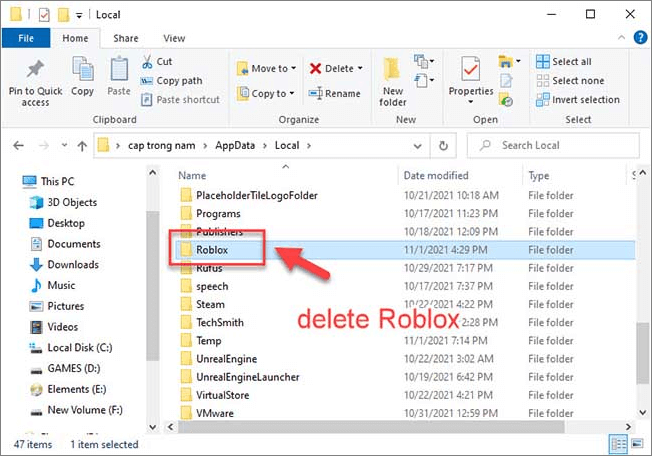
- **Clear Residual Files:** Manually delete any remaining Roblox folders in %localappdata% on Windows or Application Support on Mac to ensure a clean slate.
- **Reinstall to Desired Location:**
- **Windows:** Unfortunately, the standard web installer doesn't offer a custom installation path. It will always default to %localappdata%. If you need Roblox on a different drive, you might consider using symbolic links or junctions (advanced technique) to redirect the folder to another drive after installation.
- **Microsoft Store Version:** If you installed Roblox via the Microsoft Store, you CAN move it. Go to Windows Settings > Apps > Apps & features, find 'Roblox', click 'Move', and select your desired drive.
- **Mac:** On Mac, if you manually download the installer, it typically installs to Application Support, but advanced users might be able to create aliases or symlinks to a different drive.
For most users, especially those using the web-browser version on Windows, living with the default installation path is the easiest option. If drive space is a critical concern, prioritize moving larger, more flexible games.
How do I clear Roblox cache files?
Clearing cache files is one of the quickest and most effective ways to troubleshoot Roblox performance issues, reduce loading times, and free up valuable disk space. Over time, Roblox like any online game accumulates temporary data to speed up access to frequently used assets. However, this cache can become corrupted or excessively large, leading to lag, crashes, or glitches. Many US gamers find this simple maintenance task crucial for smooth gameplay.
Here's how to clear Roblox cache files on Windows:
- **Close Roblox:** Ensure the Roblox player and Roblox Studio are completely closed.
- **Open Run Dialog:** Press Windows key + R.
- **Navigate to Temp Folder:** Type %temp% and press Enter. This will open your user's temporary files folder.
- **Delete Roblox Cache:** In the %temp% folder, look for a folder named 'Roblox' or files related to Roblox. Select and delete them. Don't worry about deleting essential files here; these are all temporary.
- **Navigate to AppDataLocal:** Press Windows key + R again, type %localappdata% and press Enter.
- **Clear Roblox Logs:** Go into the 'Roblox' folder, then 'Logs'. You can safely delete all the files within this 'Logs' folder.
For Mac users:
- **Close Roblox:** Make sure Roblox is fully quit.
- **Open Finder:** Go to Finder.
- **Access Library:** Click 'Go' in the menu bar, then hold the Option key and click 'Library'.
- **Navigate to Caches:** Go to Caches > com.roblox.RobloxPlayer. Delete the contents of this folder.
- **Clear Logs:** Navigate to Application Support > Roblox > Logs and delete the files within.
Regularly clearing these cache and log files, perhaps once a month or when you notice performance dips, can significantly enhance your Roblox experience. It's a simple yet powerful maintenance trick for any busy gamer.
Where are Roblox screenshots and videos saved?
Capturing those epic moments, hilarious glitches, or stunning builds in Roblox is part of the fun, especially when sharing with your gaming community on Discord or other platforms. Knowing exactly where Roblox saves your in-game screenshots and videos ensures you can quickly access and manage your media library without hassle. This is vital for social gamers who love to share their experiences.
Roblox's default saving locations are typically as follows:
- **Screenshots:** When you take a screenshot using the in-game 'Print Screen' button or a specific Roblox keybind, they are usually saved in your computer's default 'Pictures' folder.
- **Windows Default:** C:Users[Your Username]PicturesRoblox
- **Mac Default:** ~/Pictures/Roblox
- **Videos (from in-game recorder):** If Roblox has an in-built video recording feature (which can vary or be integrated via third-party tools), these recordings are often saved in your 'Videos' folder.
- **Windows Default:** C:Users[Your Username]VideosRoblox
- **Mac Default:** ~/Movies/Roblox
Remember that if you are using a third-party recording software like OBS, Nvidia ShadowPlay, or AMD ReLive, those tools will have their own default saving directories, which you can usually configure within their respective settings. Always check the settings of your capture software if you can't find your media in the default Roblox locations. For many gamers, easily finding and sharing these moments adds a significant layer of enjoyment to their social gaming experience.
What about Roblox Studio files and projects?
For the creators among us, or those aspiring to build their own experiences, Roblox Studio is where the magic happens. Naturally, managing your Studio projects, templates, and other associated files is critical. Unlike the player client, Studio files are more directly under your control, usually saved within your Documents folder or a location you specify.
- **Default Project Save Location:** When you create or save a new Roblox Studio project (.rbxl file), the default location is typically within your 'Documents' folder. You can, of course, choose any location on your drive when you save a file.
- **Windows:** C:Users[Your Username]DocumentsRoblox
- **Mac:** ~/Documents/Roblox
- **Roblox Studio Installation:** The Studio application itself is usually installed alongside the player client but may have its own executable.
- **Windows:** C:Users[Your Username]AppDataLocalRobloxVersions[Roblox Studio Version Folder]
- **Mac:** ~/Applications/RobloxStudio.app
- **Plugins and Assets:** Custom plugins you install are stored within the Roblox Studio application data, often in a 'Plugins' folder within the Studio's installation directory or your AppData/Library.
For creators, backing up your project files is paramount. Regularly saving to cloud storage or an external drive can prevent heartache. Knowing these locations helps you organize your development environment, manage your creations, and ensure all your hard work is safely stored.
Are Roblox files located differently for the Microsoft Store version?
Yes, Roblox files for the version downloaded through the Microsoft Store are indeed located in a different and generally more restricted place compared to the standard web-browser installation. This difference often trips up users accustomed to the traditional file paths. It's a key distinction for troubleshooting.
The Microsoft Store version of Roblox is typically installed in:
- C:Program FilesWindowsApps
Here's why this is different and what it means:
- **Restricted Access:** The 'WindowsApps' folder is a protected system folder. Even as an administrator, accessing its contents directly can be challenging due to strict permissions. This is by design, part of Microsoft's Universal Windows Platform (UWP) app sandboxing, which aims to enhance security and app stability.
- **Limited Manual Interaction:** Due to these restrictions, manually interacting with files in the Microsoft Store Roblox installation for troubleshooting, clearing cache, or customization is significantly harder, if not impossible, without advanced system knowledge and potentially compromising system security.
- **Moving the App:** As mentioned earlier, if you need to move the Microsoft Store version to a different drive, you can usually do so via Windows Settings (Apps > Apps & features > Roblox > Move).
For most users, if you're facing persistent issues with the Microsoft Store version, a clean reinstall might be the most straightforward solution, as direct file manipulation is often not feasible or recommended.
How can finding Roblox files help with performance issues?
Performance is a constant concern for gamers, especially those who balance gaming with a demanding lifestyle and want their limited play time to be smooth and enjoyable. Knowing where Roblox files are located can directly contribute to diagnosing and resolving performance issues. It’s about being proactive and taking control of your gaming environment.
- **Clearing Cache and Logs:** As detailed, regularly deleting files from the `%temp%` folder and the 'Logs' folder within your Roblox AppData can prevent bloat and corruption that lead to lag, crashes, and slow loading times. This is often the first step in performance troubleshooting.
- **Identifying Corrupted Files:** Although rare, core game files can become corrupted. Knowing the 'Versions' folder allows you to identify if the game client isn't updating correctly or if certain assets are missing. While you usually can't fix these manually, knowing the location helps confirm the issue before a full reinstall.
- **Network Troubleshooting:** The 'logs' folder often contains network activity logs. If you're experiencing lag or disconnections, these logs can sometimes reveal issues with server connections or local network problems, providing valuable data for further investigation with your ISP or network setup.
- **Resource Monitoring (Advanced):** Knowing the exact executable path allows you to more precisely monitor Roblox's resource usage (CPU, GPU, RAM) in Task Manager or Activity Monitor, helping you understand if your hardware is struggling or if another application is interfering.
By leveraging this knowledge, you transform from a passive player to an active manager of your gaming experience, ensuring Roblox runs as smoothly as possible, leaving you more time to enjoy its vast worlds.
Frequently Asked Questions
Here are some quick answers to common questions about Roblox file locations:
Can I delete everything in the Roblox AppData folder?
No, deleting the entire Roblox folder from AppDataLocal is not recommended. This folder contains essential game versions, user settings, and other critical data. You should only clear specific subfolders like 'Logs' or temporary files in the %temp% directory, or perform a full uninstall via Windows settings if you want to remove everything.
How do I force Roblox to update to the latest version?
Roblox usually updates automatically when you launch the game client. If it's not updating, try launching Roblox from the official website. If issues persist, clearing your Roblox cache and then restarting your computer can sometimes trigger the update process. As a last resort, reinstalling Roblox will ensure you get the latest version.
Where are Roblox user settings stored?
Roblox user settings are typically stored within configuration files inside your Roblox AppData folder, often in specific client version directories. These files usually have extensions like .json or .xml and are not meant for direct manual editing. Any in-game setting changes should be done through the Roblox client itself.
Is it safe to modify Roblox game files?
Generally, modifying core Roblox game files is not safe and is against Roblox's Terms of Service. It can lead to account bans, game instability, and security vulnerabilities. Only interact with files for troubleshooting (like clearing cache) or if you are using official Roblox Studio tools for development.
Why is my Roblox folder so large?
Your Roblox folder can grow large due to accumulated game client versions, extensive cache files from many different experiences you've visited, and numerous log files. Regularly clearing your cache and log folders, as outlined above, can help reduce its size and improve performance.
So, there you have it—a comprehensive guide to navigating the often-elusive Roblox file system. We've covered everything from where the core game resides on both Windows and Mac, to understanding the purpose of key subfolders, and even practical reasons why a busy gamer would need this knowledge for troubleshooting and optimization. Remember, your gaming time is valuable, and knowing these simple tricks can save you hours of frustration, letting you get back to building, playing, and connecting with friends.
We hope this article empowers you to take better control of your Roblox experience, whether you're trying to boost performance, manage your creations, or simply find that perfect screenshot. What's your biggest gaming challenge when it comes to managing game files? Comment below! Your insights help us help the wider gaming community.
Main Roblox installation paths on Windows and Mac are essential for maintenance. Knowing file locations helps troubleshoot performance clear cache and manage storage. Roblox Studio files have distinct locations important for creators. Clearing temporary files can significantly boost game performance. Accessing game files aids in custom content management and screenshots.
35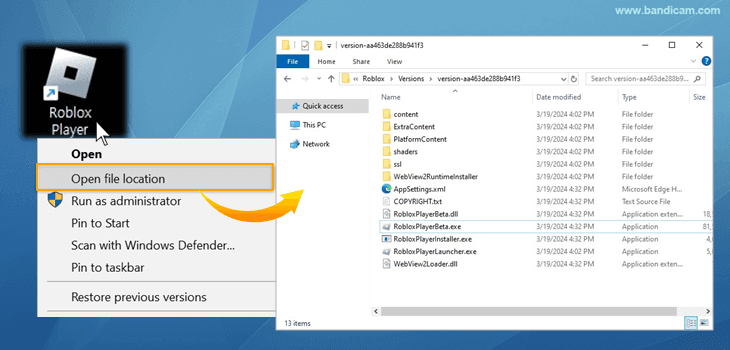



How To Record Roblox On A Windows PC Bandicam Roblox File Location . How To Open Roblox File Location Windows 11 2025 YouTube . How To Find Roblox File Location Full Guide YouTube . How To Uninstall Roblox On Windows 10 11 Mac Delete Roblox File . Where Is The Roblox Folder Located At Abby Humphries Blog



Where Is The Roblox Folder Located At Abby Humphries Blog . Build Up Of Outdated Roblox Version Folders Engine Bugs Developer . How To Add RBXM Files To Roblox Studio 2025 YouTube . Experienced Pc User Skill Required How To Revert To The Old Roblox . How To Add People Roblox Easily Your 2026 Guide


How To Move Roblox To Another Drive Easy Move Roblox To Another Drive . Dolman Law Group Files New Lawsuit Against Roblox In Georgia Over Child Roblox Roblox Sexual Abuse Lawsuit Roblox. So We Actually Got Some Good News Roblox Egg Hunt 2026 YouTube . How To Publish A Game On Roblox In 2026 Roblox YouTube . Roblox Headless Head How To Get It In Game Beebom COntent Folder In Roblox Files


ROBLOX EM 2026 VAI MUDAR TUDO YouTube . Roblox At GDC 2026 Where To Find Us All Week Roblox. Roblox R6 Explained What Does It Really Mean Oar2 . Roblox 2026 Logo Evolve YouTube Oardefault . A Roblox Movie 2026 Teaser Trailer YouTube



Roblox 2026 Logo REVEALED New Color New Look YouTube Maxres2 . Roblox Cloning What Developers Should Know In 2026 1200x1769 . ROBLOX VAI MUDAR DE LOGO EM 2026 YouTube . Roblox In 2026 Play On Roblox NoFilter. How To Download Roblox On Any Device Easily In 2026 Moldura Calendario 2026 Roblox Game PNG 935x614



Prepare For 2026 With Roblox Trends TikTok Img. How To Get Headless In Roblox Your 2026 Guide . File Yumasieve Roblox Avatar 2026 Webp Funvasion 600px Yumasieve Roblox Avatar 2026.webp . New Working Roblox Condo Game 2026 YouTube . Brazil Servers Coming Early 2026 Developer Forum Roblox


Seeking Roblox Via Google Drive Is It Safe And Smart In 2026 1200x630wa . Guide To Roblox Office Station 2 Boost Your Career 1280px Roblox . How To Recover Roblox Games Files Images. Ultimate Archived Roblox Beginner S Guide Pro Game Guides Archived Roblox Map . Roblox File Location YouTube